1. 1. The Paid App Trap: Why Closed Testers Hit a Credit Card Paywall
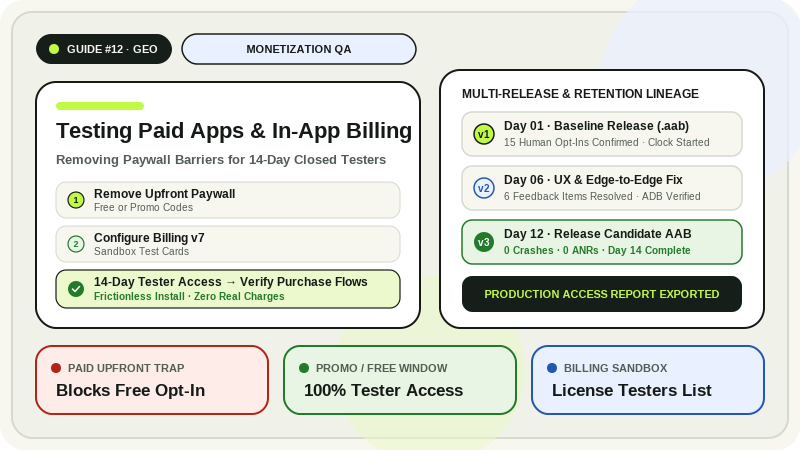
Developers transitioning from iOS TestFlight to Google Play Closed Testing frequently assume that all pre-release testing tracks automatically bypass app store purchase charges. On Google Play, that assumption is false for upfront Paid Apps. If you configure your application price under Monetize with Play -> App pricing as a Paid app (for example, $4.99 USD) and invite 12+ testers to your Closed Testing track, the Google Play Store app forces every tester to pay $4.99 with a real payment method before downloading the binary.
Unsurprisingly, external human testers—as well as automated verification checks—cannot and will not pay out of pocket just to download your closed testing build. When testers hit an unexpected purchase button instead of an 'Install' button on the Play Store listing, your closed testing install count stalls at zero and your 14-day compliance window cannot begin.
To solve this cleanly, you must first distinguish between the two monetization architectures on Google Play: **Upfront Paid Apps** (where the user pays before downloading the APK from the store) versus **Free-to-Download Apps with In-App Purchases or Subscriptions** (where the Play Store download is free and monetization occurs inside the app via Google Play Billing).
| Monetization Model | Play Store Download Button | Blocks Closed Testers? | Recommended 14-Day Testing Strategy |
|---|---|---|---|
| Upfront Paid App ($0.99+ before install) | Shows price button (e.g., '$4.99 Buy') | Yes (Testers cannot install without paying) | Generate Play Console Promo Codes for the app OR use free pricing with in-app unlock |
| Freemium with In-App Purchases (IAP) | Shows 'Install' (Free download) | No (All 12+ testers install immediately) | Provide a tester demo login or License Testing sandbox for premium screens |
| Subscription App (Play Billing v7+) | Shows 'Install' (Free download) | No (All 12+ testers install immediately) | Unlock core features for the review/tester account + use License Testers for billing flows |
2. 2. Navigating Google Play's Free-to-Paid Rule and Pre-Release Pricing
Before changing your app's price toggle in Play Console, every Android engineer must understand Google Play's famous Free-vs-Paid policy rule: once an app has been published as **Free** to users, it cannot later be switched to a **Paid** upfront download price. Google enforces this rule so apps cannot accumulate free downloads and subsequently charge re-installers.
However, modern Android monetization has overwhelmingly shifted away from upfront Paid downloads toward free downloads paired with an in-app one-time 'Pro Upgrade' or recurring subscription via Google Play Billing Library. An app set to Free download with an in-app full-version unlock converts better, prevents casual APK piracy of paid binaries, and completely eliminates the upfront Play Store download paywall for your 12+ closed testers.
What if your product requirements strictly dictate shipping an upfront Paid App (for example, a standalone premium utility or offline game with zero in-app billing code)? In that case, keep your app configured as Paid and use Google Play Console's built-in **Promotional Codes** or temporary **$0.00 Paid App Sale** mechanism so your closed testers can acquire the paid license from the Google Play Store for free.
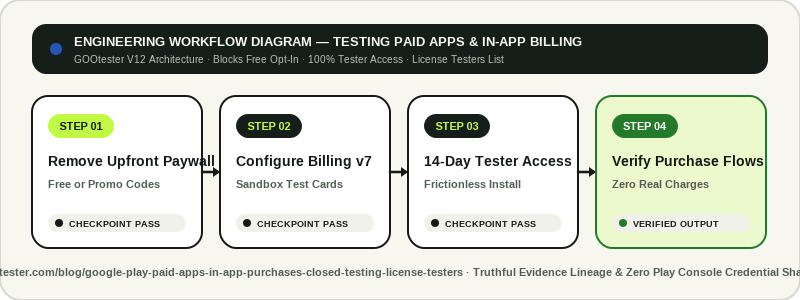
3. 3. Using Promotional Codes or Temporary $0.00 Sales for Upfront Paid Apps
Google Play Console gives developers of upfront Paid Apps two official mechanisms to let closed testers install the app without paying: **Promotional Codes** and **Price Sales ($0.00 temporary discount)**, both located under Monetize with Play -> Promo codes or App pricing -> Sales.
When you create a Paid App Promo Code promotion in Play Console, you can generate up to 500 one-time redemption codes per quarter covering the paid app download itself. Each tester who redeems a code inside the Google Play Store app receives a permanent, genuine purchase entitlement for your package ID at $0.00 cost and immediately downloads the active Closed Testing build.
Alternatively, for apps that have already passed initial setup and permit promotional sales, scheduling a temporary $0.00 Sale changes the Play Store purchase button to '$0.00 (Free Sale)' for the duration of the window, allowing every opted-in member of testers@gootester.com to tap Install directly without entering individual promo codes.
- Evaluate Converting Upfront Paid to Free + In-App Unlock: Whenever architecturally feasible, making the base Play Store download Free ensures frictionless installation for all 12+ testers.
- Or Create a Paid App Promo Code Campaign: Navigate to Monetize with Play -> Promo codes -> Create promo code, select 'Paid app' as the promotion type, and generate 25 codes.
- Set the Promo Code Start and End Dates: Ensure the promotion start date begins immediately and covers your entire 14-day closed testing window plus buffer days.
- Coordinate Redemption With Your Testing Cohort: Provide the promo codes or enable a $0.00 Sale in GOOtester onboarding notes so every tester device acquires the app at zero cost.
4. 4. Configuring License Testing for Google Play Billing Library v7+ and Subscriptions
Now let's examine apps that are free to download from the Play Store but monetize inside the app through one-time In-App Products (`inapp`) or recurring Subscriptions (`subs`) using Google Play Billing Library v7+. Because the Play Store listing itself is free, all 12+ members of testers@gootester.com can opt in and download the app immediately without any Play Store paywall.
The next question is how to test the actual in-app checkout flow without charging real credit cards. Google Play solves this through **License Testing**, configured at the developer account level under Settings (or Setup) -> License testing in the left sidebar of Play Console. Accounts listed as License Testers do not see real credit cards during an in-app purchase flow; instead, the Google Play Billing sheet displays 'Test card, always approves' and 'Test card, always declines'.
Note an architectural distinction inside Play Console: while Closed Testing tracks accept Google Groups (`testers@gootester.com`), the account-level License Testing table accepts individual email lists (up to 1,000 addresses). Therefore, combine two layers: put your own engineering QA accounts into License Testing to verify the 'Test card, always approves' BillingClient callbacks, and provide a pre-unlocked demo login or sandbox bypass toggle inside your app so all 12+ closed testers and Google's review team can explore your premium screens.
package com.example.app.billing

import com.android.billingclient.api.Purchase

/**
 * Evaluates whether the current session should unlock Pro features during
 * Google Play 14-day Closed Testing and Production review.
 */
object EntitlementEvaluator {
    private const val REVIEWER_DEMO_ACCOUNT = "developer@example.com"

    fun hasProAccess(
        loggedInUserEmail: String?,
        activePurchases: List<Purchase>,
        isClosedTestingSandboxEnabled: Boolean
    ): Boolean {
        // 1. Always unlock Pro features for the dedicated Play Console App Access reviewer/tester account
        if (loggedInUserEmail?.equals(REVIEWER_DEMO_ACCOUNT, ignoreCase = true) == true) {
            return true
        }
        // 2. Unlock if optional remote-config closed testing preview flag is active
        if (isClosedTestingSandboxEnabled) {
            return true
        }
        // 3. Standard Google Play Billing Library v7+ purchase verification
        return activePurchases.any { purchase ->
            purchase.purchaseState == Purchase.PurchaseState.PURCHASED && purchase.isAcknowledged
        }
    }
}
5. 5. How Accelerated Subscription Renewal Timers Work in Google Play Sandbox
When verifying subscriptions with a License Tester account during your closed test, Google Play automatically compresses real-world billing cycles into minutes so you can validate renewals, grace periods, account holds, and cancellations before applying for Production access. You do not need to wait thirty calendar days to verify that your backend webhook or `queryPurchasesAsync` logic handles a monthly renewal.
Under Google Play's License Testing sandbox schedule, a 1-week subscription renews every 5 minutes, a 1-month subscription renews every 5 minutes, a 3-month subscription renews every 10 minutes, a 6-month subscription renews every 15 minutes, and a 1-year subscription renews every 30 minutes. Test subscriptions automatically renew up to six times before expiring automatically.
Remember that Google Play Billing Library v7+ requires every purchase—including free sandbox test card purchases—to be acknowledged within three days via `acknowledgePurchase()` (or consumed via `consumeAsync()` for repeatable consumables). Failure to acknowledge a sandbox test purchase causes Google Play to automatically refund and revoke the test entitlement after a few minutes, which is an excellent early warning if your acknowledgment code is missing.
- 1-Week and 1-Month sandbox subscriptions renew every 5 minutes (up to 6 automatic renewals before auto-cancellation).
- 3-Month, 6-Month, and 1-Year sandbox subscriptions renew in 10, 15, and 30 minutes respectively.
- Unacknowledged sandbox purchases are automatically refunded after roughly 3 minutes in License Testing mode, helping catch missing `acknowledgePurchase()` calls.
- Always verify that your paywall UI displays a clear 'Restore Purchases' action and localized price strings returned dynamically by `ProductDetails`.
6. 6. Designing Paywall UX So All 12+ Testers Can Exercise Your Core App Features
A crucial factor during Google's manual review of your Production access application—and during initial App Content policy review—is whether testers and reviewers can actually get past your onboarding screen to test the primary functionality of your app. If your app launches straight into an unclosable hard paywall that demands a credit card subscription before showing a single feature screen, two problems happen.
First, Google Play reviewers who log in using the credentials you supplied under Policy -> App content -> App access will reject your submission for 'Broken Functionality' or 'Incomplete App Access' if that test account is trapped behind a paywall. Second, your 12+ human closed testers will only be able to interact with the paywall screen rather than exercising your core navigation flows over the 14-day testing window.
The gold-standard architecture for monetized indie apps during closed testing is straightforward: keep your base Play Store listing Free to download, provide a dismissible ('X' or 'Continue with free tier') paywall or a pre-unlocked demo test account (`developer@example.com`) shared in both Play Console App Access and your GOOtester campaign instructions, and validate your Play Billing Library checkout flow using your own License Tester accounts.
Actionable Pre-Submission Verification Checklist
- Verify under Monetize with Play -> App pricing whether your app is Free to download or an upfront Paid app.
- If your app is an upfront Paid download, generate 20+ Paid App Promo Codes or configure a temporary $0.00 Sale before Day 1.
- Ensure in-app products (`inapp`) and subscriptions (`subs`) are set to 'Active' in Play Console before testing Play Billing.
- Add your engineering QA accounts under Settings -> License testing with license response set to RESPOND_NORMALLY.
- Verify that your `BillingClient` implementation calls `acknowledgePurchase()` or `consumeAsync()` on every completed purchase.
- Provide a pre-unlocked demo account under Policy -> App content -> App access and in your GOOtester tester instructions.
Frequently Asked Questions
Do closed testers automatically get to download a Paid App for free on Google Play?
No. Unlike Apple TestFlight, Google Play Closed Testing charges the full upfront store price for Paid Apps unless the tester redeems a Paid App Promotional Code or you run a temporary $0.00 Sale. By contrast, if your app is free to download and monetizes via In-App Purchases or Subscriptions, all closed testers can download and install it for free immediately.
Can I temporarily set my app price to Free during the 14-day closed test and change it to Paid later?
Be very careful: Google Play enforces a strict policy that once an app is published as Free, it cannot later be changed to an upfront Paid download price (though you can always sell In-App Purchases and Subscriptions inside a free-to-download app). If you require an upfront Paid download price at Production launch, keep the app as Paid and issue Play Console Promo Codes for your closed testers.
Can I add a Google Group like testers@gootester.com directly into the License Testing list?
Google Play Console's Closed Testing tracks support Google Groups (`testers@gootester.com`), whereas the account-level Settings -> License testing screen only accepts individual email lists. The recommended pattern is using `testers@gootester.com` on the Closed Testing track paired with a pre-unlocked demo account or free tier for feature testing, while adding your own QA emails to License Testing to test mock credit cards.
Why did my test subscription or in-app purchase automatically refund itself after 3 minutes?
In Google Play's License Testing sandbox, the 3-day acknowledgment deadline for Google Play Billing Library v7+ is compressed to roughly 3 minutes. If your app does not call `acknowledgePurchase()` (for non-consumables and subscriptions) or `consumeAsync()` (for consumables) after receiving `PurchaseState.PURCHASED`, Google Play automatically refunds and revokes the test purchase.