1. 1. Why Google Play Returns Generic 404 and 'Item Not Found' Responses
Few moments frustrate Android developers more than copying a freshly generated Closed Testing Web Opt-In URL, opening it in a browser or sending it to a testing cohort, and seeing a stark 'App not available for this account' or HTTP 404 response. Unlike standard web servers where 404 strictly means a missing resource, Google Play's testing endpoints intentionally mask permission denials as 404 errors to prevent unauthenticated scraping of unreleased package names.
Understanding the separation between the two closed testing entry URLs immediately narrows your investigation by fifty percent. The Web Opt-In URL (https://play.google.com/apps/testing/<package>) evaluates whether the logged-in Google account belongs to an approved Google Group or email list on a live closed track. By contrast, the Play Store listing URL (https://play.google.com/store/apps/details?id=<package> or market://details?id=<package>) evaluates post-opt-in catalog visibility, regional pricing, and device SDK compatibility.
When you treat these two failures as distinct stages in Google Play's entitlement pipeline, diagnosis becomes deterministic rather than guesswork. A failure at the Web Opt-In URL points to track membership, draft publishing status, or unreviewed initial app state. A failure inside the Android Play Store app after a successful web opt-in points to country locks, cached multi-account Play Store sessions, or device hardware exclusions.
| Symptom Location | Exact Error Message | Primary Root Cause Layer | Average Fix Time |
|---|---|---|---|
| Web Opt-In URL (/apps/testing/<pkg>) | HTTP 404 / App not available | Google Group unsaved, Publishing Overview draft, or unreviewed initial release | 5–30 minutes |
| Web Opt-In URL (/apps/testing/<pkg>) | Sign-in redirect loop | Unauthenticated incognito browser or workspace account restriction | 1 minute |
| Play Store App (market://details) | Item not found / Try again | Missing country availability in Closed track or wrong active Play Store account | 2–15 minutes |
| Play Store App (market://details) | Your device isn't compatible | minSdkVersion, ABI split, or required hardware feature mismatch in AAB | 20–45 minutes |
2. 2. The 7 Root Causes of Closed Testing Opt-In and Download Failures
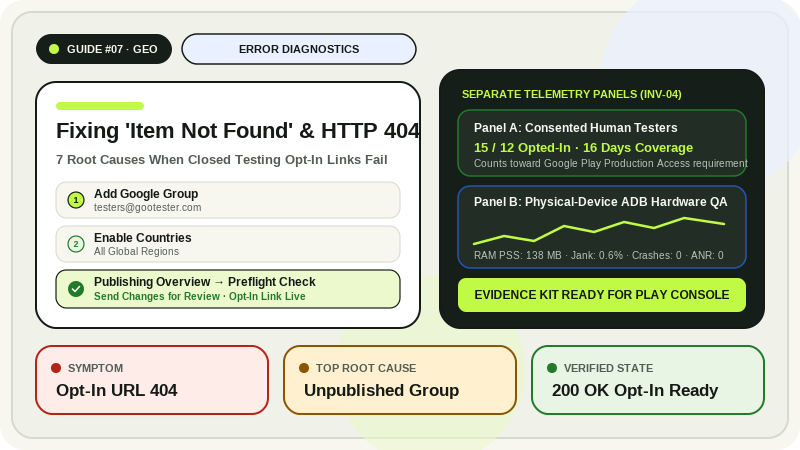
Across thousands of 14-day closed testing campaigns verified by GOOtester release engineers, virtually every 'Item not found' or 404 ticket maps to one of seven reproducible configuration gaps. Developers frequently fix one layer—such as adding the tester Google Group—while overlooking a second blocker like an unsubmitted Publishing Overview batch or a single-country availability override on the testing track.
Before altering your Android App Bundle or rebuilding your codebase, audit your Play Console workspace against the seven root causes listed below in exact sequential order. The first three items govern whether the Web Opt-In URL loads at all; the remaining four govern whether a tester who clicks 'Become a tester' can actually resolve and install the binary on a physical Android smartphone.
Pay special attention to Cause 2 and Cause 4, which together account for over seventy percent of stalled campaigns. Google Play Console decouples track-level form saves from global production and testing deployment, meaning a green toast notification at the bottom of your screen rarely means your changes have propagated to Google Play's edge catalog servers.
- Cause 1: Unauthenticated Browser or Mismatched Google Identity: Opening the Web Opt-In link in an unauthenticated browser tab or while signed into a corporate account outside the tester group triggers an immediate 404.
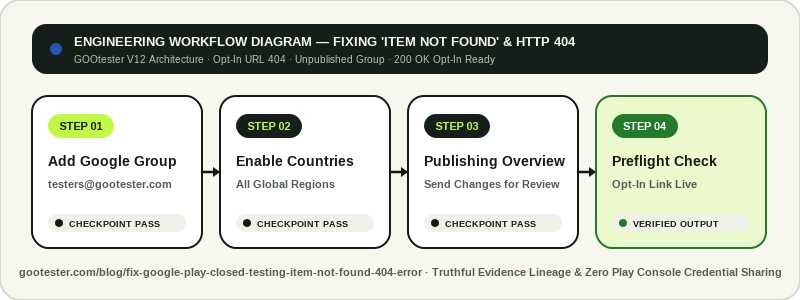
- Cause 2: Google Group Added Locally But Not Sent for Review: Configuring testers@gootester.com in Closed Testing -> Testers and clicking Save leaves the change staged in Publishing Overview until explicitly submitted.
- Cause 3: Initial App Submission Still Awaiting First Google Review: Brand-new apps on Play Console cannot serve external opt-in pages until the initial release and all mandatory App Content declarations pass Google's first review.
- Cause 4: Country and Region Availability Missing on the Closed Track: If your Closed Testing track only enables one country, testers in every other region can opt in on the web but receive 'Item not found' in the Play Store.
- Cause 5: Multi-Account Android Device Play Store Session Mismatch: When a tester opts in via Chrome using Account A, but their Android Play Store app is actively switched to Account B, the Play Store returns 'Item not found'.
- Cause 6: Inactive or Paused Closed Track With Superseded Version Code: Pausing the Closed Testing track or uploading a higher versionCode strictly to Internal Testing without promoting a build to Closed Testing leaves the track empty.
- Cause 7: Paid App Pricing Without License Testing or Promo Codes: Setting your app price above free blocks closed testers who lack an active purchase entitlement or License Tester whitelist entry.
3. 3. Verifying Google Group Binding and Publishing Overview Commits
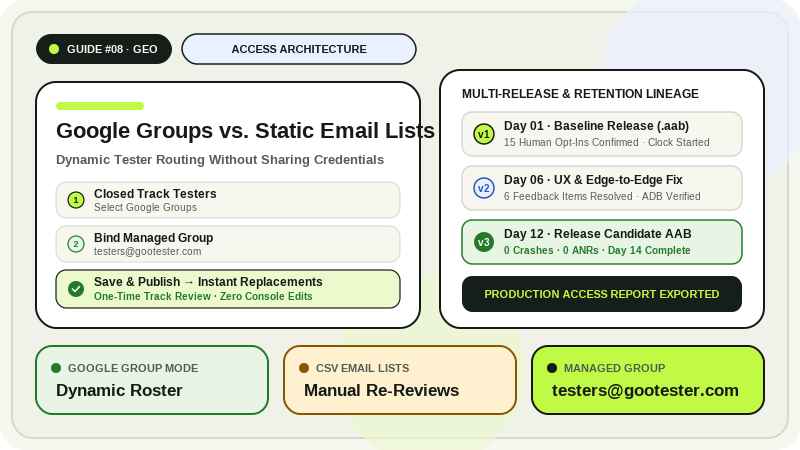
To eliminate Causes 2 and 3, navigate to Play Console -> Test and release -> Testing -> Closed testing -> Manage track, and open the Testers tab. Confirm that the radio selector is set to 'Google Groups' rather than 'Email lists', and verify that testers@gootester.com is listed cleanly without trailing whitespace or protocol prefixes. If you recently typed the address into the input field, remember that you must press Enter to crystallize the chip before clicking Save.
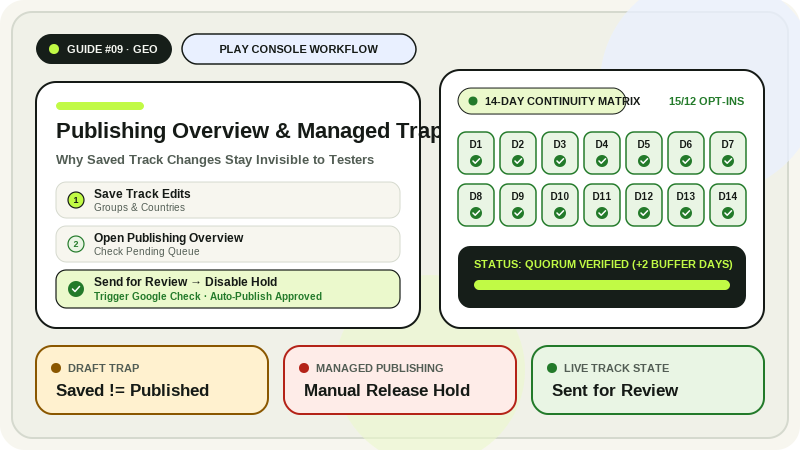
Next, open Publishing Overview from the left-hand navigation menu. Inspect the 'Changes ready to send for review' and 'Changes in review' panels. Whenever you modify tester groups, track countries, or store listing assets on an unpublished or actively reviewed app, Play Console batches those edits into a staging buffer. Until you click 'Send changes for review'—and, if Managed Publishing is enabled, subsequently publish the approved items—Google Play's opt-in servers continue reading the older snapshot.
Finally, verify that your Closed Testing track displays an 'Active' status badge alongside a rolled-out release containing at least one valid Android App Bundle (.aab). If your release badge still says 'Draft' or 'In review', external testers outside your internal account list cannot access the opt-in screen yet. Always wait for the track status to transition to Active before starting your 14-day testing countdown.
4. 4. Resolving Post-Opt-In 'Item Not Found' Errors on Physical Android Devices
Suppose your Web Opt-In link loads properly, displays the green 'Become a tester' button, and confirms 'You are now a tester for this app', yet clicking 'Download it on Google Play' opens the Play Store app with an 'Item not found' banner. This specific split-brain behavior guarantees that Google Play's identity server recognizes the tester, while the Play Store catalog server is filtering out the package for that device session.
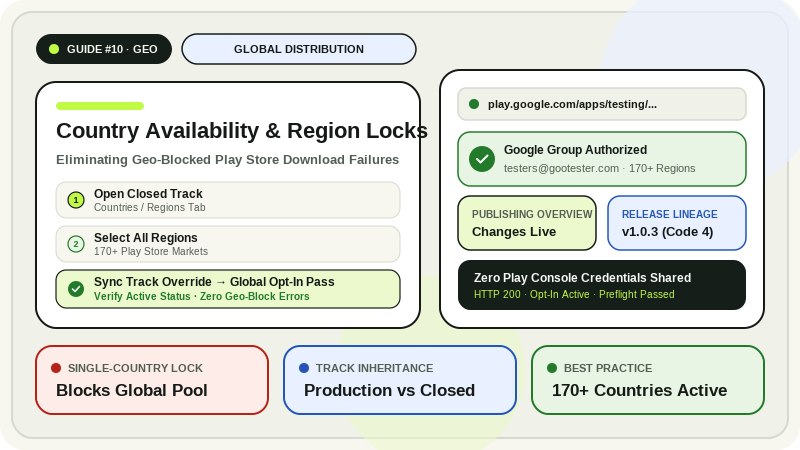
First, audit your track's regional distribution under Closed testing -> Manage track -> Countries / regions. Developers frequently select only their domestic market during initial setup, forgetting that distributed human testing cohorts operate across North America, Europe, Asia-Pacific, and Latin America. Enabling all 170+ available countries and regions on your Closed Testing track ensures no opted-in tester hits a regional catalog block.
Second, address multi-account caching inside the Android Google Play Store client. Most modern Android smartphones have two or three Google accounts logged in simultaneously (such as a personal account and a workspace account). If the Play Store app's top-right avatar differs from the Google account used in Chrome to accept the web opt-in, the Play Store queries catalog entitlements for the wrong user and displays 'Item not found'.
- Ensure all 170+ countries and regions are synced to the active Closed Testing track and committed through Publishing Overview.
- Verify that the profile avatar in the top-right corner of the Android Google Play Store app matches the exact account that clicked 'Become a tester'.
- If the Play Store recently cached a 404 before the user opted in, open Android Settings -> Apps -> Google Play Store -> Storage and clear the Play Store cache (not data).
- Wait 3 to 10 minutes after initial web opt-in for Google Play's account entitlement graph to replicate across regional Play Store edge caches.
5. 5. Diagnosing Manifest, SDK, and Hardware Feature Filters via Bundletool
Occasionally, an opted-in tester in an approved country still cannot install your app or sees a missing download button because their physical device fails a strict filter declared in your AndroidManifest.xml or build.gradle configuration. Google Play automatically translates <uses-feature> tags without android:required="false" into hard store catalog exclusions, hiding the binary from devices lacking NFC, telephony hardware, or specific camera capabilities.
Similarly, setting minSdkVersion too high or shipping native C/C++ libraries compiled exclusively for a single ABI (or inadvertently targeting x86_64 emulator architectures only) will prevent ARM64 physical smartphones from receiving an APK split. You can inspect the exact targeting criteria embedded inside your compiled Android App Bundle locally before uploading to Play Console.
Run the bundletool command below against your release .aab artifact to extract the merged manifest and verify that your package name, versionCode, SDK bounds, and required hardware features align with standard consumer Android handsets running Android 10 (API 29) through Android 15 (API 35).
# 1. Inspect the exact package ID, versionCode, and SDK requirements inside your release AAB
bundletool dump manifest --bundle=app-release.aab --xpath=/manifest/@package
bundletool dump manifest --bundle=app-release.aab --xpath=/manifest/uses-sdk/@android:minSdkVersion

# 2. List all implicitly or explicitly required hardware features that could hide your app in Play Store
bundletool dump manifest --bundle=app-release.aab | grep -E "uses-feature|uses-permission"

# 3. On a connected test device, force the Play Store deep link under the active account
adb shell am start -a android.intent.action.VIEW -d "market://details?id=com.example.productionapp" com.android.vending
6. 6. Using GOOtester Setup Verification to Catch 404s Before Your 14-Day Clock Starts
Attempting to start a 14-day closed test while your track suffers from a hidden 404 or regional catalog lock wastes precious release calendar days. If testers cannot opt in or download your app on Day 1, Google Play Console's continuous 12-tester opt-in counter remains at zero, forcing you to restart the entire two-week qualification window once you discover the configuration mistake.
GOOtester eliminates this false-start risk through a mandatory Setup Verification preflight phase before assigning your dedicated cohort of physical Android testers. When you paste your package name and Web Opt-In URL into the GOOtester dashboard, our verification engine checks whether testers@gootester.com can resolve the opt-in endpoint and whether the Play Store catalog entry responds across global regions.
Only after your track passes automated and human preflight verification does GOOtester dispatch your app to the 12+ physical testing fleet and initialize your 14-day telemetry ledger. If any of the seven root causes above are detected during setup, the dashboard provides an immediate, specific remediation step so you can fix the Play Console setting in minutes rather than losing days.
Actionable Pre-Submission Verification Checklist
- Confirm testers@gootester.com is selected under Closed Testing -> Testers -> Google Groups and saved with a visible chip.
- Open Google Play Console Publishing Overview and verify zero pending changes remain in 'Changes ready to send for review'.
- Check that your Closed Testing track status displays 'Active' and its latest release badge reads 'Available to selected testers'.
- Verify that all 170+ countries and regions are enabled on the specific Closed Testing track under the Countries / regions tab.
- Confirm your app price is set to Free during closed testing or that License Testing is properly enabled for your tester group.
- Test your Web Opt-In URL inside a browser signed into an approved tester account before launching your 14-day campaign.
Frequently Asked Questions
Why does my Closed Testing Web Opt-In URL show a 404 error when I open it in an incognito browser tab?
Google Play's /apps/testing/<package> endpoint requires an authenticated Google session belonging to an authorized tester group before it renders the opt-in card. In an unauthenticated incognito window—or when signed into an account not yet added to your Closed Testing track—Google intentionally returns a 404 error to conceal unreleased package identifiers.
How long does it take for the opt-in URL to work after I add testers@gootester.com in Play Console?
If your app has already passed its initial Google review and you submit the group change through Publishing Overview, Google Group entitlement typically propagates within 5 to 20 minutes. If your app is a brand-new submission awaiting its very first Play Console review, the opt-in URL activates only after that initial review completes (usually 24 to 72 hours).
Why can a tester click 'Become a tester' on the web page but still get 'Item not found' in the Play Store app?
This happens when web opt-in succeeds at the identity layer, but the Play Store app blocks catalog delivery. In over ninety percent of cases, either the tester's country is not enabled under Closed Testing -> Countries / regions, or the Android Play Store app is switched to a secondary Google account on the phone.
Does uploading a build to Internal Testing fix a 404 error on my Closed Testing opt-in URL?
No. Internal Testing and Closed Testing maintain separate release states, tester bindings, and entitlement rules. To resolve a Closed Testing 404 and start your 12-tester, 14-day production access countdown, you must publish an active release specifically on a Closed Testing track (such as the default Alpha track).