1. 1. How Google Play Console Evaluates Closed Testing Access Control
When configuring a Closed Testing track in Google Play Console, developers encounter a fundamental architectural choice under the Testers tab: 'Email lists' versus 'Google Groups'. While both options ultimately gate who can click 'Become a tester' at your Web Opt-In URL, they operate very differently under the hood and carry major operational consequences during a 14-day production access campaign.
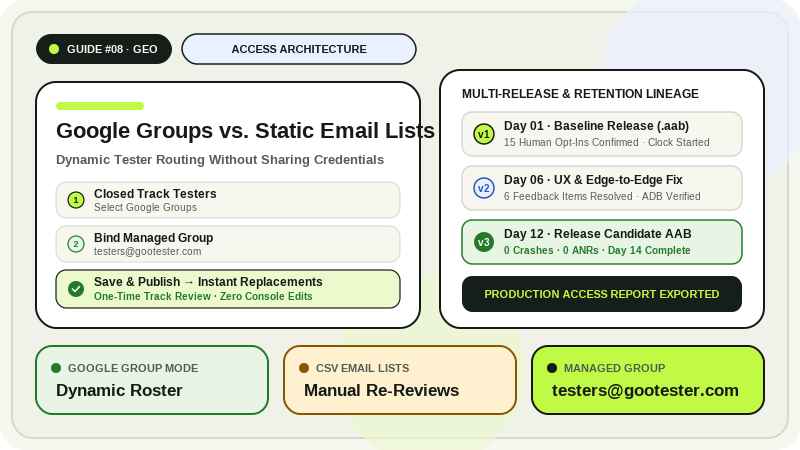
With Email Lists, Play Console stores a static array of individual Google account addresses inside your track configuration state. Every time you add or remove an address from that list, Play Console treats the edit as a track configuration mutation that must be saved and, in many cases, pushed through Publishing Overview before the new tester can access the opt-in link and download the release binary onto their device.
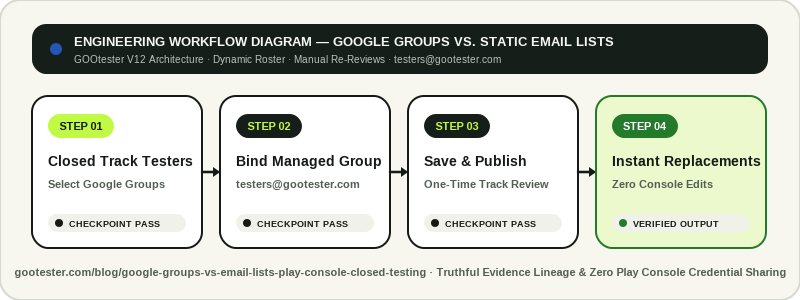
With Google Groups, Play Console delegates membership resolution dynamically to Google's directory infrastructure. Instead of managing dozens of individual emails inside Play Console, you bind one group identifier—such as testers@gootester.com—a single time. Whenever a verified tester inside that group visits your Web Opt-In URL, Google Play verifies group membership in real time and grants immediate opt-in eligibility without requiring another Play Console form save.
| Capability / Dimension | Static CSV Email Lists | Google Groups (testers@gootester.com) |
|---|---|---|
| Initial Setup Effort | Manual collection, formatting, and CSV upload of 12–20 individual emails | Paste a single address (testers@gootester.com) and save once |
| Adding Backup Testers Mid-Test | Requires editing Play Console list and pushing changes through Publishing Overview | Zero Play Console edits required; group membership resolves dynamically |
| Tester Privacy & Compliance | Exposes raw personal email addresses across third-party spreadsheets | Encapsulates tester identities behind an enterprise group alias |
| Play Console Review Overhead | High risk of forgotten draft changes when updating CSV rosters | One-time configuration commit before Day 1 begins |
| Compatibility with Internal Track | Supported on both Internal and Closed tracks | Supported exclusively on Closed Testing tracks (Alpha / custom) |
2. 2. Why Static CSV Email Lists Create Operational Bottlenecks
Many first-time Android developers default to Email Lists simply because they tested their earliest builds on the Internal Testing track, where Email Lists are the only available option. Carrying that habit into Closed Testing introduces unnecessary fragility right when you need uninterrupted 14-day continuity across at least 12 opted-in testers.
Suppose you start a 14-day test using a static CSV list of exactly 12 friends or freelancers, and on Day 5 one participant loses their phone or switches Google accounts. To add a 13th backup tester via Email Lists, you must log into Play Console, modify the list, save the track, and submit the change in Publishing Overview—waiting hours or days if another store listing edit is currently locked in review.
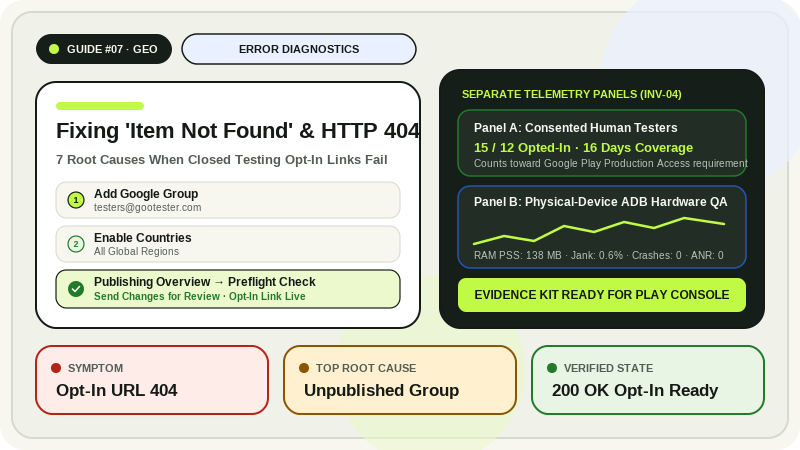
Furthermore, CSV formatting quirks frequently cause silent opt-in failures. Hidden UTF-8 byte-order marks (BOM), trailing spaces, or non-Google email aliases that are not backed by a Google Play account will either fail CSV validation or leave specific testers stuck on HTTP 404 pages without an obvious error indicator inside Play Console.
- Static CSV lists lock your tester roster behind Play Console's Publishing Overview queue whenever a replacement tester is needed.
- Collecting raw personal email addresses on public forums exposes participants to spam and creates unnecessary PII handling burdens.
- Play Console allows only one active mode per Closed Testing track: selecting Email Lists automatically disables Google Groups until switched.
- Using Google Groups with testers@gootester.com ensures a built-in safety buffer of verified testers without manual CSV administration.
3. 3. Step-by-Step: Binding testers@gootester.com to Your Closed Testing Track
Configuring your Closed Testing track for Google Groups takes less than three minutes and requires only one permanent entry. Start by opening Google Play Console, selecting your application, and navigating to Test and release -> Testing -> Closed testing in the left sidebar. Locate your active closed track—typically named 'Closed testing - Alpha'—and click 'Manage track'.
Switch to the 'Testers' tab at the top of the track workspace. Select the 'Google Groups' radio button. In the 'Enter Google Group email address' input box, enter testers@gootester.com and press the Enter key (or click Add) so that the address renders as an attached pill badge beneath the input field. Merely typing the text without pressing Enter before clicking Save is a common UI pitfall that leaves the group list empty.
Click 'Save' in the bottom-right corner, then scroll down to the 'How testers join your test' section and click 'Copy link' next to the Web URL (https://play.google.com/apps/testing/<your.package.name>). Finally, navigate to Publishing Overview in the left menu and submit any queued changes for review so the Google Group binding propagates to Google Play's production edge.
- Open Closed Testing Track Management: Go to Test and release -> Testing -> Closed testing -> Manage track on your primary Alpha or custom closed track.
- Select the Google Groups Radio Option: Open the Testers tab and switch the radio selector from 'Email lists' to 'Google Groups'.
- Add testers@gootester.com as a Confirmed Chip: Type testers@gootester.com into the field, press Enter so it appears as a confirmed chip, and click Save.
- Commit Track Changes in Publishing Overview: Visit Publishing Overview and click 'Send changes for review' if your group addition is staged in the draft queue.
4. 4. Switching From Email Lists to Google Groups Without Losing Release History
Developers who already uploaded an Android App Bundle (.aab) to a Closed Testing track while using Email Lists often worry that switching the Testers tab to Google Groups will wipe out their uploaded release or force them to increment their versionCode. In Google Play Console's data model, release artifacts and tester authorization lists are stored as independent track properties.
When you toggle your Closed Testing track from 'Email lists' to 'Google Groups', add testers@gootester.com, and save, your active release binary, release notes, and roll-out state remain completely intact. You do not need to re-upload your .aab, rebuild your Gradle project, or create a brand-new testing track just to adopt Google Groups for your 14-day production access campaign.
However, be aware of one crucial nuance: because 'Email lists' and 'Google Groups' are mutually exclusive radio buttons on a single track, switching from Email Lists to Google Groups replaces the authorization source for that track. If you amass 12+ testers through testers@gootester.com, that single Google Group easily satisfies and exceeds the entire 12-tester threshold on its own, while maintaining a clean, centralized authorization boundary across all fourteen consecutive days.
5. 5. Zero-Credential Security: Why You Never Share Play Console Access
A dangerous anti-pattern promoted by low-quality freelance gigs is asking developers to invite an external agency email under Play Console -> Users and permissions with 'Admin' or 'Release manager' privileges. Granting third parties direct user access to your Google Play Developer account creates severe security, policy, and account-association risks under Google Play's Developer Program Policies.
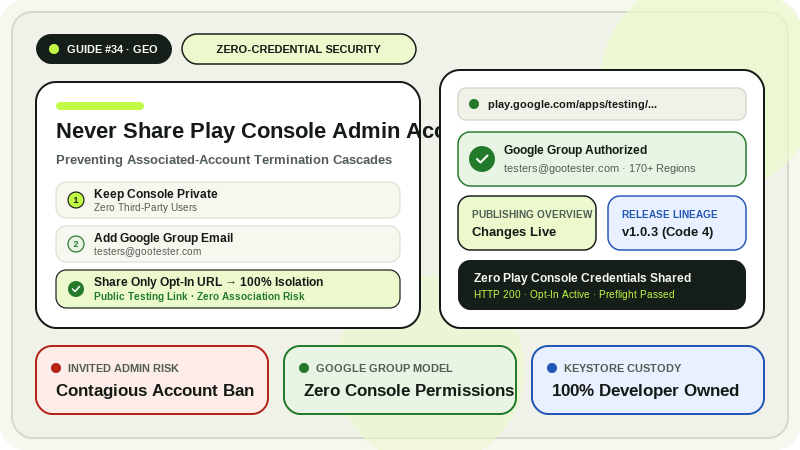
Google Groups on a Closed Testing track operate on an entirely separate, zero-credential consumer entitlement plane. Adding testers@gootester.com under Closed testing -> Manage track -> Testers grants zero access to your Play Console dashboard, zero visibility into your financial or payout reports, and zero ability to modify store listings or upload binaries.
The sole permission granted to testers@gootester.com is identical to giving a beta customer a private download pass: members of the group can open your public Web Opt-In URL, click 'Become a tester', and install your signed app from the Google Play Store onto their physical Android devices. Your developer account credentials, signing keys, and Users & Permissions roster remain 100% under your exclusive control.
{
  "configurationLocation": "Play Console -> Testing -> Closed testing -> Manage track -> Testers",
  "googleGroupAddress": "testers@gootester.com",
  "grantedCapabilities": [
    "View Web Opt-In consent screen at https://play.google.com/apps/testing/<package>",
    "Download Play-signed closed track APK splits via official Google Play Store app",
    "Submit private pre-release tester feedback to the developer"
  ],
  "prohibitedCapabilities": [
    "ZERO access to Google Play Console dashboard or Users & Permissions",
    "ZERO access to upload keys, keystore files, or source repositories",
    "ZERO ability to alter store metadata, pricing, or production releases"
  ]
}
6. 6. Automated Preflight Verification With GOOtester
Once you bind testers@gootester.com to your Closed Testing track and commit the update in Publishing Overview, GOOtester's onboarding flow verifies the configuration before dispatching your app to the testing fleet. Simply submit your Android package name (for example, com.example.myapp) and your Web Opt-In link inside the GOOtester dashboard to trigger real-time entitlement inspection.
During the Setup Verification stage, GOOtester probes the opt-in endpoint under the testers@gootester.com identity umbrella to confirm that Google Play renders the active 'Become a tester' screen rather than a 404 page. Simultaneously, our diagnostic checks validate that your Play Store listing resolves across international regions, that your release badge is actively rolled out, and that no paid-app paywall blocks installation.
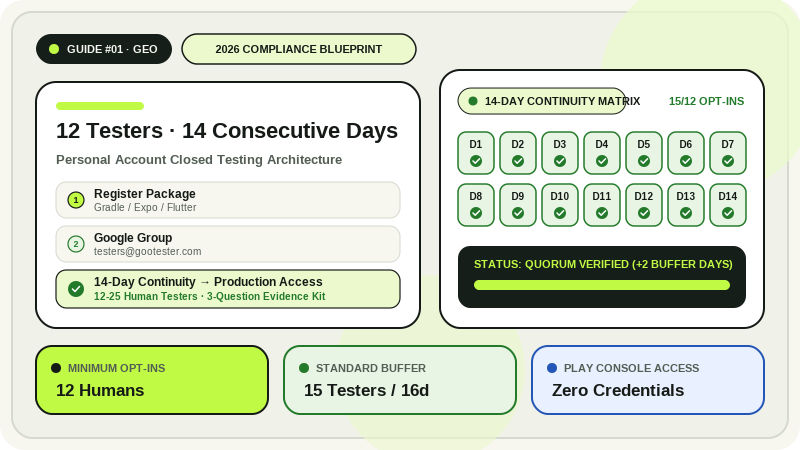
This architectural combination—Google Groups for frictionless, dynamic tester authorization plus automated preflight verification—turns what used to be a chaotic multi-day spreadsheet chore into a predictable, five-minute engineering setup. As soon as verification passes, 12+ real testers on physical Android smartphones opt in and maintain continuous daily compliance for the full 14-day window until your Production access button unlocks.
Actionable Pre-Submission Verification Checklist
- Verify you are editing a Closed Testing track (such as Alpha) and NOT the Internal Testing track, which lacks Google Groups support.
- Confirm the 'Google Groups' radio button is selected under Closed testing -> Manage track -> Testers.
- Ensure testers@gootester.com appears as a saved chip below the input box rather than unsaved text inside the field.
- Never add external testing services under Play Console -> Users and permissions; keep your developer account 100% zero-credential.
- Check Publishing Overview to confirm your Google Group configuration change is not sitting unsubmitted in the draft queue.
- Copy the exact Web Opt-In URL (https://play.google.com/apps/testing/<package>) from the bottom of the Testers tab.
Frequently Asked Questions
Why don't I see the Google Groups option when I open my testing track in Play Console?
If you only see an Email Lists option and no Google Groups radio button, you are currently viewing the Internal Testing track rather than a Closed Testing track. Navigate to Test and release -> Testing -> Closed testing, select your Alpha track (or create a new Closed Testing track), and open the Testers tab there.
Does adding testers@gootester.com give anyone access to my Google Play Console account?
No. Adding a Google Group under Closed testing -> Testers only authorizes members of that group to opt in and download your app from the Google Play Store as beta testers. It provides zero access to your Play Console dashboard, settings, financials, or Users and permissions.
Can I use both an Email List and a Google Group at the same time on the same Closed Testing track?
Google Play Console treats 'Email lists' and 'Google Groups' as mutually exclusive radio buttons on any single Closed Testing track. However, a single Google Group like testers@gootester.com already contains all 12+ verified testers required to satisfy Google's 14-day closed testing requirement.
Do I have to upload a new Android App Bundle (.aab) if I switch my track from Email Lists to Google Groups?
No. Your uploaded releases and your tester authorization mode are stored separately on the track. Switching the radio button to Google Groups, adding testers@gootester.com, and saving preserves your existing active .aab release without requiring a versionCode bump.