1. 1. The Associated Developer Account Ban Cascade: Google Play's Deadliest Trap
For an independent Android developer or startup, the single most catastrophic event in mobile publishing is receiving an email from Google Play Trust & Safety stating: 'Your Developer account has been terminated due to prior violations of the Developer Program Policies by this or an associated, previously-terminated Google Play Developer account.' Once issued, a termination is lifetime, global, and extraordinarily difficult to overturn.
How do completely honest developers who have never violated a single Google Play policy get caught in an associated-account termination cascade? One of the most common vectors is inviting an external freelancer, testing agency, or release consultant into their Google Play Console under the 'Users and permissions' tab.
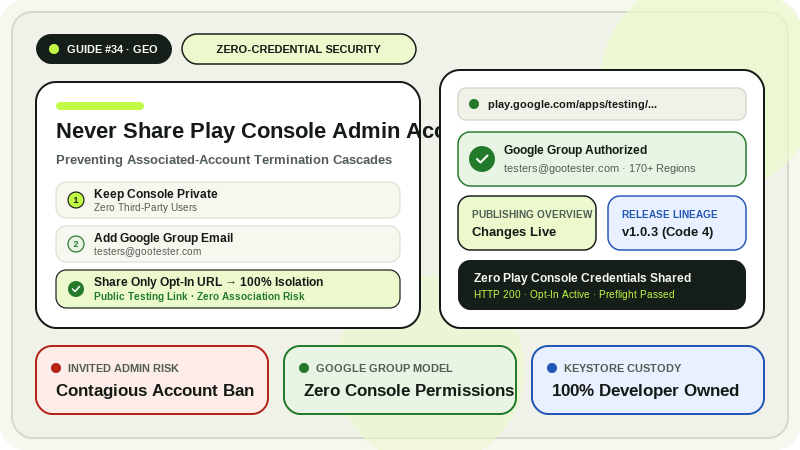
When you invite an external email address into your Play Console's Users & Permissions roster—even with limited Release Manager or View-Only roles—Google's security graph permanently links your Developer ID to every other Google Play Console where that freelancer holds access. If that freelancer works with fifty clients and just one of those fifty clients uploads malware or gets banned for policy circumvention six months later, the enforcement blast radius can sweep across every linked console.
| Access Mechanism | Play Console Admin Exposure | Associated-Account Ban Link? | Can View Financials / Keys? | Required for 12-Tester Closed Test? |
|---|---|---|---|---|
| Users & Permissions Invite (Admin / Release Manager) | Full or Track-Level Console Access | CRITICAL RISK (Direct graph link in Play Console) | Yes (depending on role checkboxes) | No — NEVER use for closed testers |
| Google Cloud Service Account JSON Key | Programmatic API Publish Access | HIGH RISK (Shared API credentials across clients) | Yes (via Google Play Developer API) | No — NEVER share with testing vendors |
| Closed Testing > Google Groups (testers@gootester.com) | ZERO Console Access | NONE (Standard Play Store consumer download scope) | No (Storefront install permission only) | YES — Official zero-credential method |
2. 2. Why Google Groups (`testers@gootester.com`) Provides Complete Administrative Isolation
Google Play Console was purposefully architected with two completely separate permission planes: administrative console management ('Users and permissions' in the left-hand navigation menu) and storefront tester distribution ('Closed testing > Manage track > Testers'). Understanding the boundary between these two planes is the foundation of zero-credential release security.
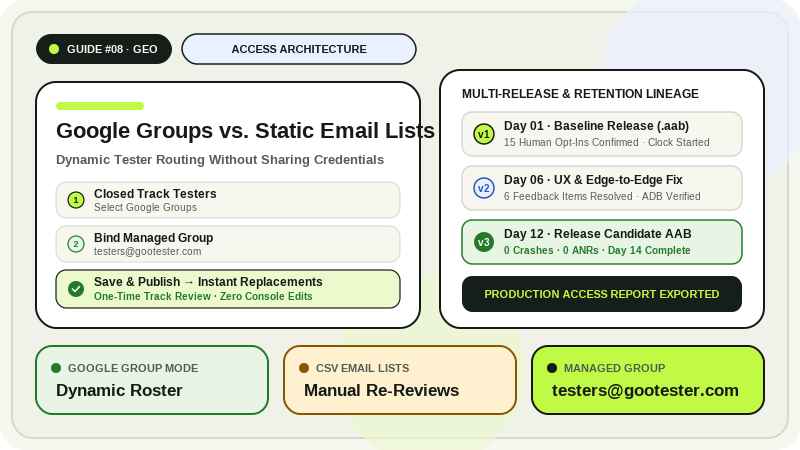
When you open your Closed Testing track's Testers tab, select the 'Google Groups' radio button, and enter `testers@gootester.com`, you are not adding anyone to your developer organization. Instead, you are instructing the consumer Google Play Store storefront that members of that Google Group are permitted to view your unlisted beta store page and download your Google-signed AAB delivery bundle after clicking your opt-in link.
A tester inside `testers@gootester.com` interacts with your application solely as an end consumer through the Google Play Store app on their Android phone. They cannot log into your Play Console, cannot see your developer identity details beyond what is public on your store listing, cannot view your other apps, and cannot create an administrative association link with your developer profile.
3. 3. Protecting Your Upload Keystore, Play App Signing, and Unreleased Binaries
Beyond asking for Play Console invitations, shady marketplace operators frequently ask developers to email or message them raw `.apk` or `.aab` build files—or even worse, ask for the project's `.jks` upload keystore so the freelancer can 'fix a manifest error and upload it for you.' Sharing your upload keystore or raw binaries outside Google Play introduces severe intellectual property and supply-chain vulnerabilities.
Your upload keystore (`.jks` or `.keystore`) is the cryptographic root of trust proving to Google Play App Signing that a new `.aab` bundle was compiled by the rightful owner of your package ID. If a third party obtains a copy of your upload key and password, they retain the cryptographic capability to sign malicious payloads targeting your package namespace.
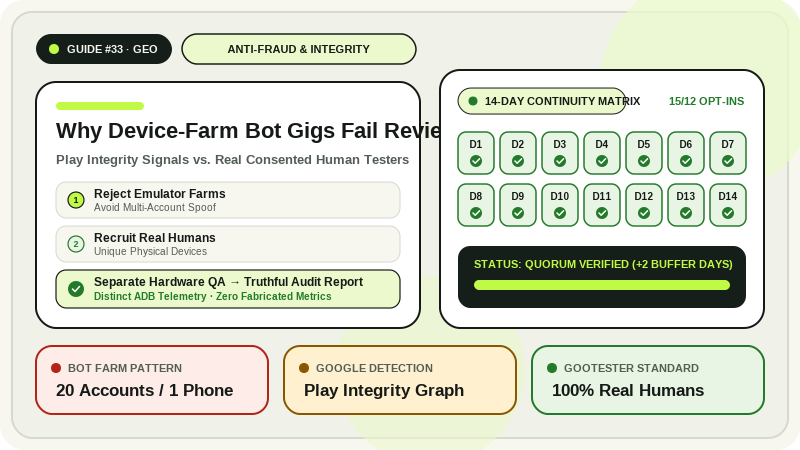
Similarly, sending raw `.apk` files over chat bypasses Google Play's Closed Testing telemetry altogether. Sideloading an APK via browser download or file transfer does not register as an official Google Play Store closed test installation and contributes zero progress toward your 12-tester / 14-day consecutive opt-in milestone.
- Keep your upload keystore strictly inside your local encrypted keychain or GitHub Actions encrypted repository secrets—never transmit it to any external contractor or vendor.
- Distribute closed testing builds exclusively through Google Play Console's official Closed Testing track so every tester downloads a Play-signed binary from Google's servers.
- Enable Play App Signing in Play Console so Google manages the final production app signing key inside Google's Hardware Security Modules (HSMs).
- If an upload key is ever accidentally exposed to a third party, immediately request an Upload Key Reset inside Play Console > Setup > App signing.
4. 4. How to Provide Test Credentials for Login-Gated Apps Without Exposing Production Data
What if your Android application requires user authentication—such as an email/password login, magic link, or phone number verification—before a tester or a Google Play reviewer can reach the home screen? Here again, disciplined credential hygiene protects both your backend database and your users' privacy.
Never give closed testers or Play Console reviewers an administrator login that has access to real customer Personally Identifiable Information (PII), live Stripe/Dodo payment webhooks, or destructive back-office controls. Instead, provision a dedicated, sandboxed demo account in your backend database specifically scoped for closed testing and Google Play App Content review.
Notice that Google Play Console also requires you to enter demo login instructions under Policy > App content > App access whenever any part of your app is behind a login wall. Using a clean, pre-populated demo account (for example, `demo-tester@gootester.com` or `reviewer@example.com` with synthetic sample data) satisfies both your 12 human closed testers and Google Play's automated and human reviewers.
{
  "purpose": "Google Play App Content Reviewer & Closed Tester Demo Account",
  "demoCredentials": {
    "username": "demo-reviewer@example.com",
    "accessPinOrPassword": "PlayReview2026!Sandbox",
    "twoFactorBypassEnabledForDemoAccountOnly": true
  },
  "securityBoundaries": {
    "canAccessRealCustomerPii": false,
    "billingEnvironment": "SANDBOX_MOCK_LEDGER",
    "rateLimitQuota": "isolated_demo_bucket",
    "preSeededSampleProjects": 5
  }
}
5. 5. Step-by-Step Guide to Setting Up Zero-Credential Closed Testing in Play Console
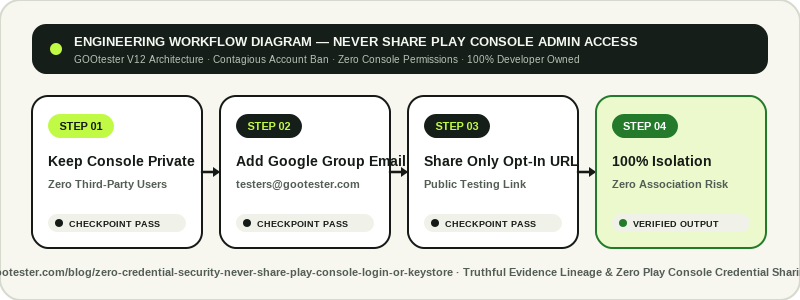
Configuring a locked-down, zero-credential closed testing workflow in Google Play Console takes less than five minutes and guarantees that your developer account's trust graph remains 100% under your sole control. First, verify under Play Console > Users and permissions that only your own personal or corporate primary account is listed.
Next, navigate to Testing > Closed testing, select your active closed track (normally the default 'Alpha' track), and switch to the 'Testers' tab. Select the 'Google Groups' option and add `testers@gootester.com`. Do not add `testers@gootester.com` to Users & Permissions—it belongs exclusively inside the Closed Testing track's Testers tab.
Finally, scroll down to the 'How testers join your test' section at the bottom of the Testers tab, click 'Copy link' next to the Web link (`https://play.google.com/apps/testing/<your.package.name>`), verify that any pending changes in Publishing Overview are submitted and live, and paste that public opt-in link into your GOOtester campaign dashboard.
- Audit Play Console > Users and Permissions: Confirm that zero external freelancers, unknown agency emails, or expired contractor accounts exist in your administrative Users and Permissions list.
- Add testers@gootester.com Under Closed Testing > Testers > Google Groups: Authorize the managed tester Google Group strictly inside the Closed Testing track's Testers tab, isolating access to storefront downloads only.
- Share Only Your Package ID and Web Opt-In URL: Submit your public package name and official play.google.com/apps/testing/... opt-in link to start your 12, 15, or 25 human tester campaign.
6. 6. Post-Campaign Cleanup and Long-Term Play Console Hygiene
Once your 14-to-24-day closed testing campaign completes and Google Play grants your Production Access approval, maintaining clean Play Console hygiene ensures your developer account stays in pristine standing for years of future app releases. Because you used a Google Group inside your Closed Testing track rather than administrative console permissions, cleanup is effortless.
When you promote your release from Closed Testing to the open Production track, you can either keep your Closed Testing track active for future pre-release beta updates or uncheck the Google Group inside the Closed Testing > Testers tab whenever you no longer want closed beta testers accessing pre-release builds.
At the same time, rotate or disable any temporary demo account passwords you created for closed testers if they differ from the persistent reviewer credentials stored in Policy > App content > App access. Always leave the dedicated reviewer credentials listed in App Content > App Access active permanently, as Google Play re-tests production updates continuously.
Permanent vs. Temporary Credentials After Production Approval
Keep your post-launch credential lifecycle organized so future Google Play policy re-reviews never fail due to an expired login.
- Keep active forever: The demo account entered in Play Console > Policy > App content > App access (Google reviewers re-verify this login on every future production update).
- Optional cleanup: Remove or rotate any separate community beta invite codes once your app is live on the public Production track.
- Never alter: Your Play App Signing configuration and hardware-backed upload keystore isolation.
Actionable Pre-Submission Verification Checklist
- Audit Google Play Console > Users and permissions right now and revoke any third-party freelancer, vendor, or unfamiliar email address.
- Confirm that testers@gootester.com is entered strictly under Testing > Closed testing > Manage track > Testers > Google Groups.
- Verify that you have never shared your .jks/.keystore upload key, keystore password, or Google Cloud service-account JSON file with any third party.
- Ensure all closed testers install your app via the official Google Play Store opt-in link rather than sideloading raw APK files.
- Provision a sandboxed demo login account pre-populated with synthetic data if your app requires sign-in, and list it in Policy > App content > App access.
- Enable 2-Step Verification (preferably hardware security keys or passkeys) on the primary Google account owning your Play Console.
Frequently Asked Questions
What is a Google Play 'Associated Developer Account' termination?
Google Play tracks connections between developer accounts based on shared Users & Permissions admins, shared payment profiles, and shared network/hardware telemetry. If you invite a third-party freelancer as a User or Admin in your Play Console and another account linked to that freelancer is banned for malware or policy fraud, Google Play can permanently terminate your account by association.
Does adding testers@gootester.com as a Google Group create an associated-account risk?
No. Adding a Google Group under Closed testing > Manage track > Testers only authorizes consumer Google Play Store accounts in that group to download your closed test build after opting in. It grants zero access to your Google Play Console dashboard and does not create a Users & Permissions administrative link.
Why would a freelance seller on Fiverr ask for my Play Console login or admin access?
Inexperienced or unscrupulous sellers often ask for Users & Permissions access so they can manually paste their own rotating email lists or check your track status without waiting for you. Regardless of their excuse, granting console access exposes your entire developer account to their other clients' policy violations.
Do I need to upload my APK or AAB file to GOOtester?
No. With GOOtester's standard human closed testing coordination ($6 Basic, $12 Standard, $20 Premium), you upload your signed AAB solely to your own Google Play Console. Our human testers download and install your app directly from the official Google Play Store via your opt-in URL.