1. 1. Understanding Google Play Console's Account Verification Deadlines
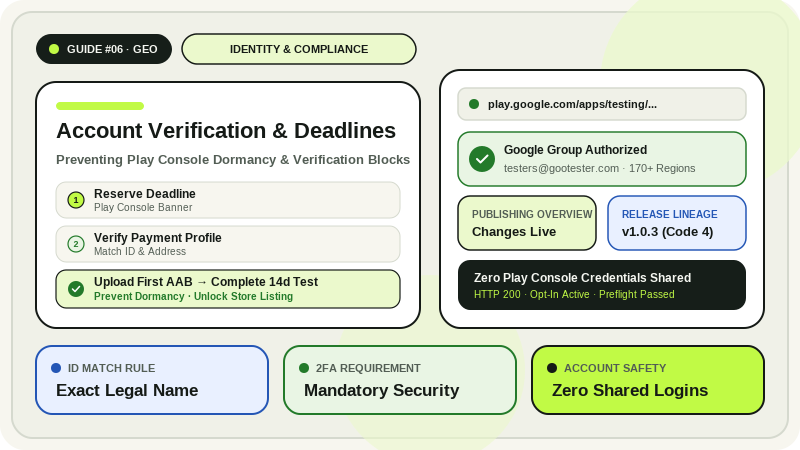
Alongside the 12-tester, 14-day closed testing requirement, Google Play enforces mandatory developer identity verification across both newly registered and legacy Play Console accounts. While older developer accounts were asked to choose a 60-day verification window prior to their enforcement deadline, all newly created Personal and Organization Developer Accounts must complete full identity and address verification during onboarding before their apps can graduate.
If a developer account has an active verification deadline banner inside Play Console and fails to upload verifiable documentation before the countdown expires, Google Play enforces an automatic administrative lock. Any live apps are unpublished from the Play Store, active Closed Testing tracks are suspended, and new release submissions are blocked.
Therefore, you should never treat account verification and your 14-day closed test as disconnected chores. Complete your identity and physical address verification cleanly on Day 0 so that an unresolved document review never stalls your Closed Testing release or invalidates your 14-day opt-in streak.
| Verification Requirement | Personal Developer Account | Organization Developer Account | Failure Consequence if Missed |
|---|---|---|---|
| Legal Name & Photo ID | Government passport, driver's license, or national ID | Authorized representative's government photo ID | Account locked; releases blocked from review |
| Physical Street Address Proof | Utility bill, bank statement, or tax notice (<90 days old) | Must match official Dun & Bradstreet D-U-N-S address | Rejection after 3 failed document upload attempts |
| Contact Email & Phone OTP | Verified developer email + SMS/voice phone OTP | Verified domain email + public corporate phone OTP | Cannot publish Closed Testing or Production tracks |
| 2-Step Verification (2FA) | Mandatory on owner and admin Google accounts | Mandatory across all organization admin accounts | Console dashboard access restricted until enabled |
2. 2. Solving the #1 Verification Failure: Character-for-Character Payments Profile Matching
When developers report that Google Play rejected their valid passport or bank statement with the message 'We couldn't verify your identity or address,' the culprit is almost never a forged document—it is a string mismatch against their underlying Google Payments Center profile (`payments.google.com`).
Behind the scenes, Google Play Console delegates identity and address validation to the Google Payments verification engine. When you register your Play Console account, it links to a specific 12-digit Google Payments Profile ID. If that Google Payments profile was created five years ago using an old college apartment address or a shortened nickname, uploading a utility bill with your current street address will automatically fail validation.
Before uploading any document to Play Console, sign into `payments.google.com`, open the Settings tab, and verify that your Legal Name and Street Address match your government photo ID and recent bank statement or utility bill character for character—including middle initials, apartment numbers, and postal codes.
- Audit payments.google.com Before Uploading IDs: Open payments.google.com > Settings and inspect the exact Legal Name and Street Address stored on the payment profile linked to Play Console.
- Prepare High-Resolution Uncropped Color Scans: Scan or photograph your government ID and a utility bill or bank statement issued within the last 90 days with all four physical document corners visible.
- Verify Non-VOIP Phone & Support Email Ownership: Use a dedicated physical SIM mobile or landline phone number for OTP verification; disposable VOIP numbers frequently fail carrier validation.
- Enable Hardware or Authenticator 2-Step Verification: Turn on Google Account 2-Step Verification (2FA) using an authenticator app or passkey so Play Console never restricts release publishing.
3. 3. Play Console Dormancy Policy: How to Prevent Automatic Account Closure
Even after your Personal Developer Account is fully verified, Google Play enforces an ongoing account activity policy designed to purge abandoned consoles. If a newly registered Play Console account remains dormant—meaning the developer never uploads an Android App Bundle or never logs into Play Console to manage an active draft or testing release for 12 consecutive months—Google sends a dormancy warning and permanently closes the account.
Once an account is closed for dormancy, the $25 registration fee is forfeited and the closed account cannot be reopened; the developer must create an entirely new account and repeat identity verification from scratch. Similar dormancy warnings can trigger on accounts whose only historical app was unpublished over a year ago with zero recent downloads or console logins.
The most reliable way to prevent dormancy closure on a newly verified Personal Developer Account is to create your app entry, upload your signed initial `.aab` to your `Closed testing - Alpha` track, and complete your 14-day closed test so your account transitions into an active, verified publisher state.
- New Account Dormancy Window: Do not leave a newly verified Play Console account sitting empty without an uploaded `.aab` release.
- Active Release Signal: Uploading a signed `.aab` to Closed Testing and completing your 12-tester, 14-day cycle flags the account as actively publishing.
- Annual Target SDK Maintenance: Ship at least one maintenance update per year to keep your live apps compliant with Google Play's annual `targetSdkVersion` requirement.
- Inbox Monitoring: Monitor the primary developer email address (e.g., `developer@example.com`) for policy notifications and deadline alerts.
4. 4. Protecting Your Verified Account from 'Associated Account' Suspensions
Once you invest the time and documentation required to verify your Google Play Developer Account with your government ID, protecting that account's network and permission boundary becomes paramount. Google Play's anti-abuse engine continuously monitors account login sessions, browser fingerprints, and Users and Permissions invitations for links to previously terminated developer accounts.
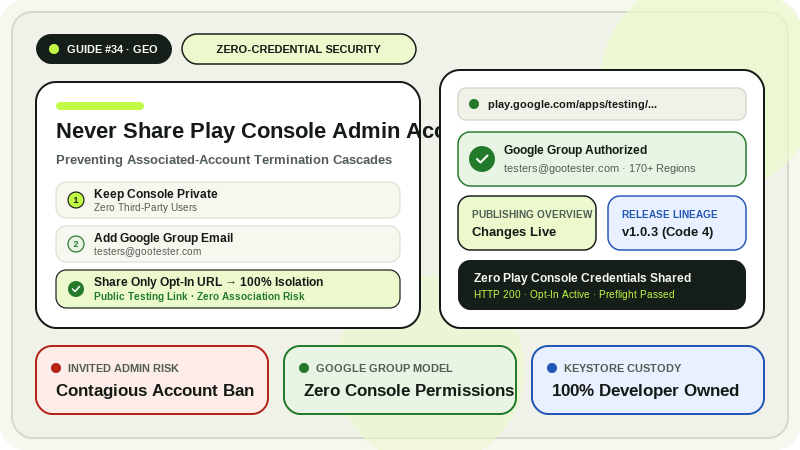
This is why you must **never** hire a grey-market testing freelancer who asks you to invite their email address to your Play Console's *Users and permissions* administration page, or asks for your Google login credentials to 'set up closed testing for you.' If that freelancer's admin account is ever linked to a banned developer console, Google Play can terminate your verified account by association.
GOOtester's architecture was built from day one to eliminate this risk completely. When you use GOOtester, you never add anyone to *Users and permissions* and never share credentials. Adding `testers@gootester.com` under *Closed testing > Testers > Google Groups* uses Google Play's official external consumer testing channel, which carries zero administrative link to your developer console.
{
  "safeExternalTesterChannel": {
    "location": "Release > Testing > Closed testing > Manage track > Testers > Google Groups",
    "groupIdentifier": "testers@gootester.com",
    "consoleAdminPermissionsGranted": "NONE",
    "associatedAccountContagionRisk": "ZERO"
  },
  "dangerousPracticeToAvoid": {
    "location": "Users and permissions > Invite new users",
    "warning": "NEVER invite unknown third-party vendors as Play Console administrators"
  }
}
5. 5. Sequencing Account Verification with Your First 14-Day Closed Test
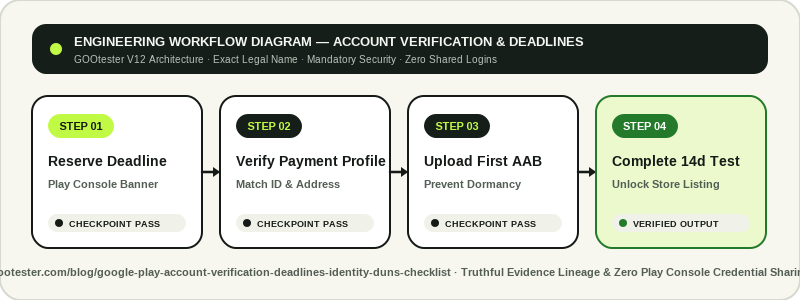
To achieve the fastest possible time-to-market for your first Android app on a new Personal Developer Account, follow a disciplined two-track onboarding sequence. On Day 0, immediately after paying the $25 Play Console fee, submit your government ID and proof-of-address documents while simultaneously completing your app's Store Listing and App Content declarations.
Identity verification for a Personal Developer Account typically clears within 24 to 48 hours when your documents match your Google Payments profile. As soon as identity verification succeeds, upload your signed `.aab` to your `Closed testing - Alpha` track, enable all Countries/Regions, bind `testers@gootester.com` under Google Groups, and submit the closed release for Google's initial track review.
By the time Google Play finishes reviewing your initial closed release (usually 12 to 72 hours), your account identity is 100% verified and ready for GOOtester's human tester cohort to opt in, start the 14-day consecutive counter, and take your app straight to Production Access.
6. 6. What to Do If Your Initial Document Upload Is Rejected
Google Play provides a limited number of automated document upload attempts before locking the self-service verification widget. If your first identity or address document upload is rejected, stop immediately—do not re-upload the exact same file a second and third time hoping for a different automated OCR result.
Instead, read the specific rejection reason in the Play Console notification banner and email notice. Cross-check every character of the name and street address on your `payments.google.com` profile against your document. If your utility bill is a digital PDF downloaded from a power company portal, print it on paper and photograph the physical sheet on a dark desk surface with all four corners visible, or request an official stamped paper bank statement.
If your self-service upload attempts are exhausted, you must submit an official Play Console Developer Support verification appeal ticket attaching both your government photo ID and a secondary dated proof of address explaining the exact Payments profile alignment.
Pre-Upload Document Quality Verification
Ensure there is zero flash glare obscuring the hologram or birthdate on your government ID, confirm the proof-of-address document is dated within the past 90 days, and verify the document is written in a Latin script or accompanied by an official certified translation supported by Google Payments.
Actionable Pre-Submission Verification Checklist
- Log into payments.google.com and confirm your Legal Name and Street Address match your government ID and utility bill character-for-character.
- Capture full-frame, uncropped color photographs of your government photo ID and a bank statement or utility bill dated within 90 days.
- Enable 2-Step Verification (2FA) on your Google Account and verify your contact phone number using a physical non-VOIP mobile line.
- Never invite external testers or third-party agencies to Play Console's 'Users and permissions' administration screen.
- Use Closed testing > Testers > Google Groups with testers@gootester.com to keep tester access completely isolated from console permissions.
- Upload an active .aab to your Closed Testing track promptly after verification to prevent Play Console dormancy warnings.
Frequently Asked Questions
Why did Google Play reject my utility bill or bank statement during address verification?
In most cases, address verification fails because the street address or legal name stored in your Google Payments Center profile (`payments.google.com`) does not match the uploaded document character-for-character, or because the uploaded image had its four physical page corners cropped out. Align your Google Payments profile first before re-uploading.
Can I start my 12-tester, 14-day closed test before my developer identity verification is approved?
You can create your app draft and configure your Closed Testing settings, but Google Play will not publish your Closed Testing release to testers (`Available to testers`) until your developer account's mandatory identity and address checks are verified. Complete identity verification first so your closed release can go live.
Is it safe to add testers@gootester.com to my verified Google Play Console account?
Yes, 100% safe. Adding `testers@gootester.com` in the Google Groups field under *Closed testing > Testers* uses Google Play's native external beta distribution mechanism. You never grant administrative permissions under *Users and permissions* and never share your Play Console login or keystore.
How long can a Google Play Developer Account remain inactive before Google closes it?
Google Play's dormant account policy targets accounts that have remained inactive for 12 months without uploading an app or logging into Play Console. Uploading your signed `.aab` to Closed Testing and graduating to Production keeps your developer account in good active standing.