1. 1. The 'Saved But Not Live' Illusion in Google Play Console
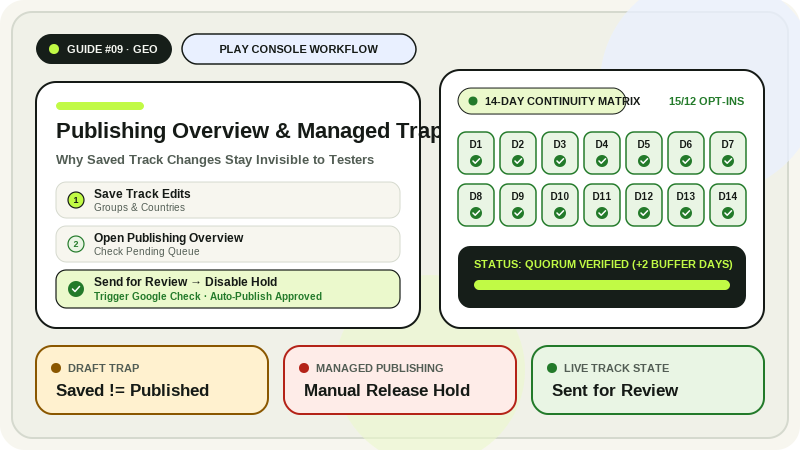
Modern web applications train developers to expect that clicking a primary blue 'Save' button immediately applies a configuration change. Google Play Console breaks this assumption by implementing a distributed, multi-page staging model similar to a Git working tree: local form saves write to a draft workspace, while the Publishing Overview dashboard controls when those staged commits are actually dispatched to Google's review and distribution pipeline.
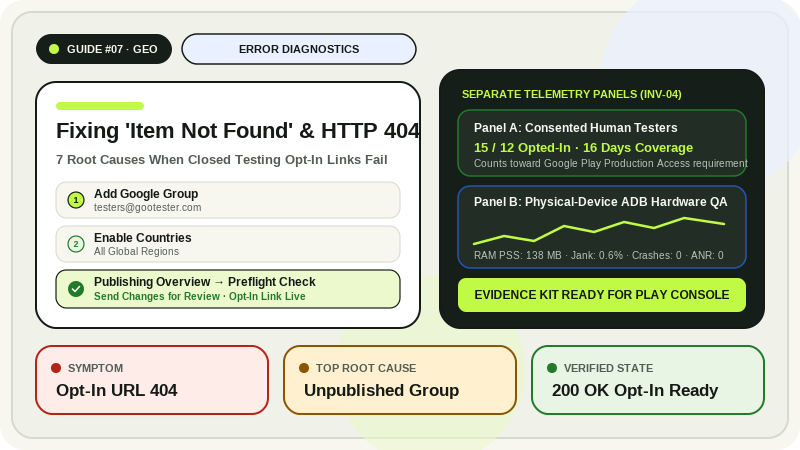
Consequently, hundreds of developers add testers@gootester.com to their Closed Testing track, click Save, copy the Web Opt-In link, and wait days wondering why every tester receives an HTTP 404 error. When they finally open Publishing Overview in the left navigation bar, they discover their Google Group addition sitting untouched under the heading 'Changes ready to send for review'.
Understanding why Google designed Play Console this way prevents endless frustration. Because a single release often touches multiple surfaces—store listing screenshots, content ratings, target countries, and binary tracks—Play Console lets you batch those edits together so Google's policy scanner can evaluate them as an atomic transaction. The downside is that an unsubmitted batch freezes your closed test before Day 1 even starts.
| Play Console UI State | Where It Appears | Live to Closed Testers? | Required Developer Action |
|---|---|---|---|
| Saved on Track Page Only | Publishing Overview -> Changes ready to send for review | No (HTTP 404 on opt-in URL) | Click 'Send X changes for review' in Publishing Overview |
| Submitted to Google | Publishing Overview -> Changes in review | Not yet (awaiting approval) | Wait for review completion (avoid pushing conflicting store edits) |
| Approved with Managed Publishing ON | Publishing Overview -> Changes ready to publish | No (held in manual release queue) | Click 'Publish' or disable Managed Publishing for immediate release |
| Published / Active | Closed Testing Track -> Active / Available to selected testers | Yes (Web Opt-In & Play Store live) | Proceed with GOOtester Setup Verification and 14-day testing |
2. 2. How 'Changes Ready to Send for Review' Traps Closed Testing Updates
Not every edit inside Google Play Console behaves identically, which adds to the confusion. When an app is still in its initial pre-release state—or when certain account-level review flags are active—almost every modification across Store Settings, App Content, Countries/Regions, and Closed Testing Testers is routed into the 'Changes ready to send for review' queue on the Publishing Overview screen.
Even when you click 'Next' and 'Save' while creating a new Closed Testing release (.aab rollout), Play Console may display a banner prompting you to go to Publishing Overview instead of publishing the track directly. If you close the browser tab before clicking 'Send changes for review' on the Publishing Overview page, your newly uploaded Android App Bundle and tester group remain in limbo indefinitely.
Make it an unbreakable release habit: after every single edit inside Google Play Console—whether you modified a tester email group, checked a country checkbox, or uploaded a patch .aab—immediately click 'Publishing overview' at the top of the left-hand sidebar. Your edit is only genuinely submitted when the 'Changes ready to send for review' table is completely empty.
- Save Your Local Track or Tester Modification: Click Save inside Closed testing -> Manage track -> Testers, Countries / regions, or Releases.
- Open Publishing Overview Immediately: Select 'Publishing overview' near the top of the left-hand Play Console navigation menu.
- Inspect the Staged Changes Table: Verify every queued item listed under 'Changes ready to send for review' to ensure no unintended draft edits are bundled.
- Click 'Send Changes for Review': Confirm submission so the items transition from 'Changes ready to send for review' into 'Changes in review'.
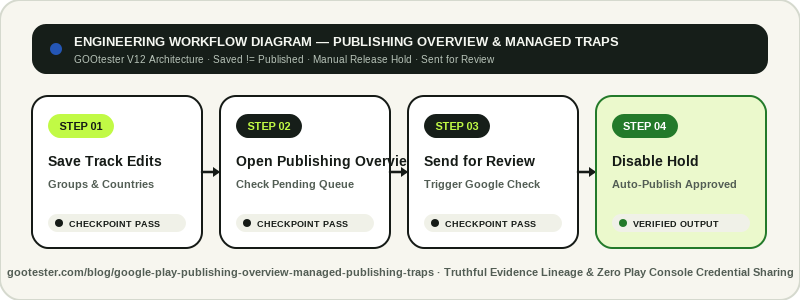
3. 3. Managed Publishing: The Second Silent Blocker After Review Approval
Suppose you diligently clicked 'Send changes for review' in Publishing Overview, waited 24 hours, and received an email or noticed that 'Changes in review' is now empty—yet your closed testers still cannot see the new build or opt into your track. In this scenario, the culprit is almost always Managed Publishing being toggled ON.
Managed Publishing is a feature designed for large enterprise teams that want to coordinate an approved update with an exact marketing announcement timestamp. When Managed Publishing is enabled, Google reviews your changes and, upon approval, parks them inside a holding bucket labeled 'Changes ready to publish' on the Publishing Overview screen rather than pushing them live to Google Play's global edge distribution servers.
For indie developers and engineering teams executing a 14-day closed testing campaign, Managed Publishing offers zero upside and creates a massive operational hazard. Every time you ship an iterative bug-fix AAB or update a track setting during your 14-day window, Managed Publishing silently holds the approved binary back until you remember to log into Play Console, open Publishing Overview, and manually click 'Publish'.
4. 4. Preventing Review Queue Contamination Between Store Metadata and Closed Tracks
Another subtle trap inside Publishing Overview is review queue contamination. When you submit multiple changes together in one batch, Google's review pipeline evaluates the entire batch according to its highest-risk item. A routine Google Group addition or minor bug-fix .aab on a Closed Testing track normally passes automated verification rapidly once the app has passed its initial review.
However, if you simultaneously edit your main Store Listing title, upload new promotional screenshots, alter your Data Safety questionnaire, or add a restricted Android permission like FOREGROUND_SERVICE_LOCATION in the same batch, the entire transaction is routed into a deeper policy review queue that can take several days.
If your primary goal today is unlocking your Web Opt-In URL so your 12+ testers can start Day 1, keep your Publishing Overview submission laser-focused. Commit your Google Group binding (testers@gootester.com), your 170+ country availability selection, and your stable Closed Testing .aab release first, without layering non-essential cosmetic store listing experiments on top while the submission is in flight.
- Submit essential Closed Testing track configurations (Testers, Countries, and active AAB) as a clean, self-contained batch.
- Avoid repeatedly pushing new store listing text tweaks while an initial Closed Testing submission is already 'In review', as each new push can reset review queue priority.
- Never introduce high-risk manifest permissions (such as QUERY_ALL_PACKAGES or AccessibilityService) during closed testing unless strictly required and declared in App Content.
- Confirm all mandatory App Content declarations under Policy and programs -> App content show 'Submitted' or completed status.
5. 5. Why 'Draft' Apps Cannot Serve Closed Testing Opt-In Links
When you create a brand-new application in Google Play Console, its top-level header displays an app status of 'Draft'. An app remains in Draft status until you complete the initial setup checklist—including Privacy Policy, App Access credentials (if your app has a login screen), Ads declaration, Content Rating questionnaire, Target Audience, Data Safety, and Government/Financial features—and roll out your first release to a track.
Many developers upload an .aab to Closed Testing and click 'Save as draft' on the release page instead of clicking 'Next' -> 'Save and publish' (or 'Send changes for review'). A draft release inside a Closed Testing track does not activate the track, does not register with Google Play's testing entitlement graph, and never generates a working external opt-in page.
You can verify whether your Closed Testing release is genuinely active by checking the release status badge under Test and release -> Testing -> Closed testing -> Manage track -> Releases. The status must transition out of 'Draft' into 'In review' and finally to 'Available to selected testers' (with the top-level track status reading 'Active') before external testers in testers@gootester.com can opt in and download the app.
Expected Play Console Status Progression for Closed Testing:

[Stage 1: Incomplete]
  Track Status:   Inactive / Draft
  Release Badge:  Draft (User clicked 'Save as draft' instead of 'Next -> Save')
  Opt-In URL:     HTTP 404 (Not Found)

[Stage 2: Staged in Buffer]
  Publishing Overview: "1+ changes ready to send for review"
  Opt-In URL:          HTTP 404 (Changes not yet transmitted to Google)

[Stage 3: Under Google Review]
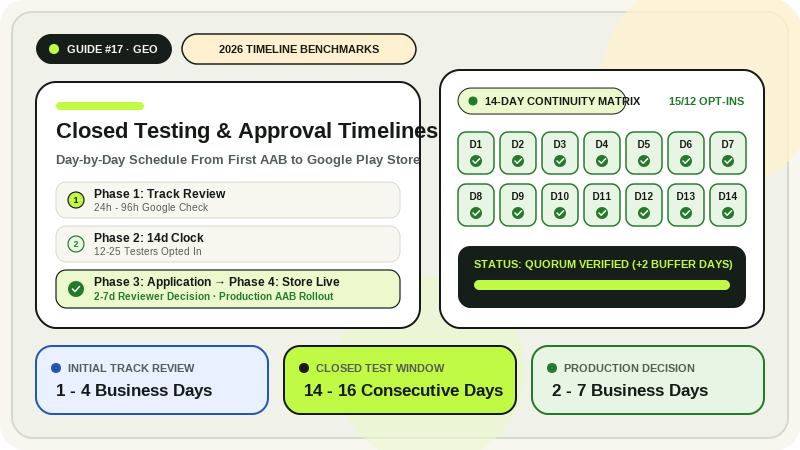
  Publishing Overview: "Changes in review" (Initial app review: typically 24-72h)
  Opt-In URL:          HTTP 404 until first review completes

[Stage 4: Live & Ready for GOOtester Day 1]
  Track Status:        Active
  Release Badge:       Available to selected testers (Full rollout)
  Publishing Overview: 0 changes ready to send / 0 changes ready to publish
  Opt-In URL:          HTTP 200 ("Become a tester" active for testers@gootester.com)
6. 6. The 60-Second Publishing Overview Audit Before Launching Your Campaign
Before submitting your Web Opt-In URL to GOOtester for Setup Verification, perform a deterministic 60-second audit of your Publishing Overview screen. This single check prevents ninety percent of Day 1 onboarding delays and ensures your campaign moves smoothly from preflight verification into active 14-day testing across all 12+ assigned physical Android devices.
First, verify that 'Managed publishing status' reads 'Managed publishing off'. Second, verify that 'Changes ready to send for review' reads zero changes. Third, verify that if this is your very first upload of the application to Google Play Console, the 'Changes in review' panel has cleared and your Closed Testing track badge now reads 'Active' with an active release rolled out to 100% of testers.
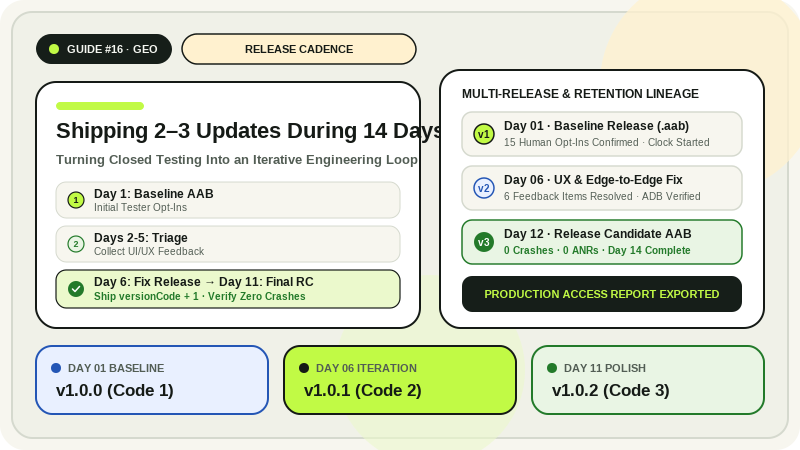
During the course of your 14-day closed test, whenever you upload an updated Android App Bundle to demonstrate active developer iteration, repeat this exact 60-second Publishing Overview audit. Ensuring every patch release is immediately sent for review—and automatically published upon approval—keeps your testing cohort running your latest versionCode without manual bottlenecks or forgotten release holds.
Actionable Pre-Submission Verification Checklist
- Open Publishing Overview after every Play Console edit and confirm zero items remain under 'Changes ready to send for review'.
- Set Managed Publishing to 'Managed publishing off' so approved Closed Testing updates go live immediately without manual holds.
- If Managed Publishing was previously on, check 'Changes ready to publish' and click 'Publish' on any held items.
- Confirm your Closed Testing release was rolled out cleanly and is not sitting as an unsubmitted 'Draft' release on the track.
- Verify all mandatory Policy -> App content declarations are completed so Google does not block your track submission.
- Avoid bundling non-essential store listing cosmetic edits while an urgent Closed Testing configuration is awaiting review.
Frequently Asked Questions
Why do I have to click 'Send changes for review' in Publishing Overview after I already clicked Save on my Closed Testing track?
Google Play Console uses a two-stage commit architecture. Clicking Save on a track page records your edits in a draft staging workspace so you can batch multiple changes together. Those edits are not transmitted to Google's review or distribution servers until you open Publishing Overview and click 'Send changes for review'.
Should I turn Managed Publishing on or off during my 14-day Google Play closed testing campaign?
You should keep Managed Publishing turned OFF during closed testing. When Managed Publishing is on, approved tester groups, country changes, and bug-fix AAB updates sit indefinitely in a manual 'Changes ready to publish' holding queue until you log in and release them manually.
How long does 'Changes in review' take for a Closed Testing track in Google Play Console?
For a brand-new app submitting its very first release to Google Play Console, the initial review typically takes 24 to 72 hours (occasionally up to 5–7 days if sensitive permissions or login walls require manual inspection). Once your app passes its initial review, subsequent Google Group or country edits and minor closed-track AAB updates usually clear review within 15 minutes to a few hours.
Does sending a new AAB update for review in Publishing Overview pause my active 14-day closed test?
No. While your new versionCode is in review, the previously approved active release on your Closed Testing track remains live and your 12+ opted-in testers stay opted in without interruption. Once the new build is approved, Google Play delivers it as an standard app update.