1. How Play Console's Automated Firebase Robo Crawler Tests Your App Bundle
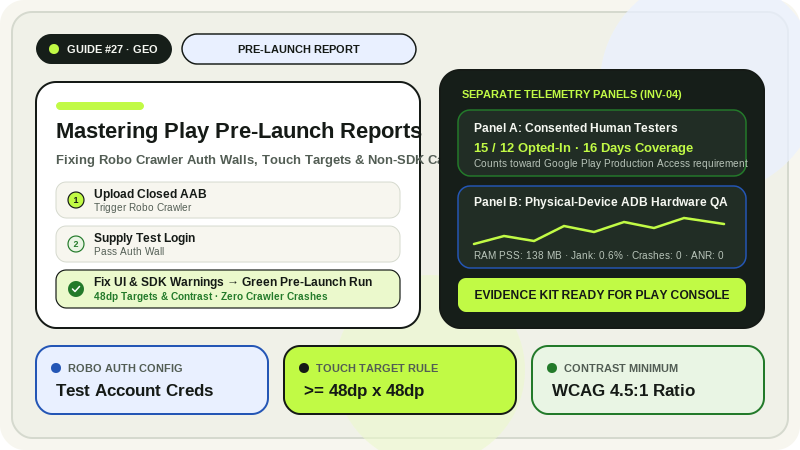
Within thirty to sixty minutes of promoting an Android App Bundle (`.aab`) to your closed testing track, Google Play Console automatically provisions several physical smartphones in Firebase Test Lab and executes an automated crawl known as a Robo test. The Robo crawler systematically inspects your view hierarchy, taps buttons, enters synthetic text into form fields, rotates screen orientation, and records video and logcat traces.
First-time developers frequently confuse these automated Google data-center installs with their human closed testers. In reality, Firebase Test Lab Robo crawls are one-off automated diagnostic runs: they never opt into your closed track link, do not increment your 12-tester counter, and do not contribute to your 14-day continuous opt-in streak.
However, the Pre-Launch Report generated by those Robo crawls sits directly inside your Play Console Testing menu. If the Robo crawler triggers an unhandled crash on three test devices, that bright red stability warning remains attached to your release version code when a Google reviewer audits your Production Access application.
| Pre-Launch Report Dimension | What Firebase Robo Inspects | Severity Impact on Production Review | Recommended Resolution |
|---|---|---|---|
| Stability (Crashes & ANRs) | Unhandled exceptions & native crashes during 5-min crawl | Critical — can block Production approval | Patch stack trace & ship new versionCode |
| Security & Non-SDK APIs | Vulnerable TLS, exported components, hidden reflection | High — policy or runtime crash risk | Upgrade SDKs & remove restricted reflection |
| Performance | Cold startup duration, average FPS, CPU & network usage | Moderate — correlates with Android Vitals | Defer heavy init off main thread |
| Accessibility (ATF) | Touch target <48dp, contrast <4.5:1, missing labels | Advisory — improves quality score | Enforce 48dp min touch size & contentDescription |
2. Configuring Test Account Credentials So Robo Passes Your Login Wall
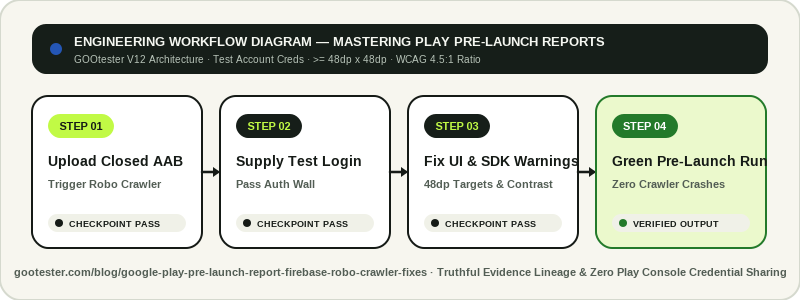
If your application presents an authentication gate on startup, an unconfigured Firebase Robo crawler will spend its entire five-minute execution budget repeatedly tapping your Sign In button with random strings, never reaching a single core screen of your app. Worse, if you fail to provide working login credentials in Play Console's App Content declarations, human Google Play policy reviewers will reject your release for Incomplete App Access.
Notice that Google Play Console actually has two separate places for credentials: `Policy -> App content -> App access` (used by human Google Play policy reviewers) and `Testing -> Pre-launch report -> Settings -> Test account credentials` (used by the automated Firebase Robo crawler).
To allow automated Robo scripts to sign in cleanly, provide a standard username/email (such as `tester-demo@example.com` or `robo-reviewer@gootester.com`) and password in both locations, and verify that the resource IDs of your username field, password field, and submit button match the hints configured in Pre-launch report settings.
3. Fixing Robo Crawler Monkey-Input Crashes and Deep-Link Exceptions
Because Firebase Robo systematically stress-tests every clickable widget and exported Activity in your `AndroidManifest.xml`, it frequently uncovers edge-case crashes that human testers rarely trigger during normal usage. For example, Robo automatically launches every exported Activity with an empty `Intent`, which immediately crashes any Activity that assumes `intent.getStringExtra("item_id")!!` is non-null.
Robo also types rapid multi-locale strings, negative numbers, and empty values into numeric input fields, and clicks submit buttons multiple times in rapid succession before network callbacks return. If your submit handler lacks a debounce lock or null-safe parsing (`toIntOrNull()`), the Robo crawler will log a fatal `NumberFormatException` or `IllegalStateException`.
Furthermore, you can detect when your app is running inside a Firebase Test Lab device by checking the system setting `Settings.System.getString(contentResolver, "firebase.test.lab") == "true"` to disable destructive actions like deleting the demo account or triggering real payment webhooks during automated crawls.
import android.content.Context
import android.provider.Settings

fun isRunningInFirebaseTestLab(context: Context): Boolean {
    return try {
        Settings.System.getString(context.contentResolver, "firebase.test.lab") == "true"
    } catch (_: Exception) {
        false
    }
}

// Guard exported Activities against null Intent extras during Robo direct-launch probes
val itemId = intent?.getStringExtra("item_id")
if (itemId.isNullOrBlank()) {
    finish()
    return
}
4. Resolving Accessibility Warnings: 48dp Touch Targets, Contrast & Content Labels
Every Pre-Launch Report runs Google's Accessibility Test Framework (ATF) on every screen visited by the Robo crawler. Developers are often alarmed when their first upload shows 15 to 40 yellow or orange accessibility warnings grouped into three categories: Touch Target Size, Low Contrast, and Speakable Text Missing.
Under Material Design and Android Accessibility guidelines, every interactive control (icon buttons, checkboxes, close icons, pagination dots) must expose a physical touch target of at least `48dp x 48dp` even if the visible vector icon inside is only `20dp x 20dp`. You can satisfy this effortlessly by adding `14dp` of inner padding or setting `android:minWidth="48dp"` and `android:minHeight="48dp"` (or `Modifier.sizeIn(minWidth = 48.dp, minHeight = 48.dp)` in Jetpack Compose).
For contrast warnings, ensure body text achieves a luminance contrast ratio of at least `4.5:1` (`3.0:1` for large bold headings) against its actual rendered background color, and attach concise `contentDescription` (or `Semantics` in Flutter) labels to all icon-only buttons.
- Touch Target Size (<48dp): Wrap small 24dp icons in a 48dp x 48dp clickable container or hit-slop region.
- Speakable Text Missing: Add `contentDescription` on interactive `ImageButton` or custom canvas elements; set `importantForAccessibility="no"` on purely decorative illustrations.
- Low Text Contrast (<4.5:1): Darken muted gray placeholder text (e.g., use `#94A3B8` or `#CBD5E1` on dark `#0F172A` surfaces instead of low-opacity `#475569`).
5. Eliminating Restricted Non-SDK Interface (Hidden API Reflection) Warnings
Starting with Android 9 and tightened significantly in Android 14 and Android 15 (API 35), the Android runtime restricts apps from accessing internal platform methods and fields via Java reflection or JNI that are not part of the official public Android SDK. In the Pre-Launch Report, Play Console categorizes detected reflection calls into Unsupported (greylist), Conditionally Blocked (max-target-o/p/q/r/s), and Blocked (blacklist).
In 95% of indie apps, non-SDK warnings originate not from your own business logic, but from outdated transitive dependencies—older versions of OkHttp, Gson, AppCompat, React Native modules, or legacy ad SDKs that reflect into `android.os.Build`, `sun.misc.Unsafe`, or `android.view.View` internals.
Examine the exact class and call site printed in the Pre-Launch Report's Non-SDK Interfaces table. Upgrading your AndroidX libraries, Jetpack Compose BOM, Flutter engine, or third-party Maven dependencies to their latest Android 15-compatible versions almost always eliminates Conditionally Blocked reflection warnings.
- Inspect Call Stack in Pre-Launch Report -> Stability/Compatibility: Expand each non-SDK interface entry to see whether the reflection call originates in your package or a third-party library.
- Reproduce Locally via adb shell settings put global hidden_api_policy: Run `adb shell settings put global hidden_api_policy 1` during physical-device QA and watch logcat for `Accessing hidden method` warnings.
- Upgrade Outdated Third-Party Dependencies: Bump legacy libraries (OkHttp, Tink, Firebase BOM, React Native plugins) that use reflection on older Android internals.
6. Verifying a Clean Pre-Launch Report Before Applying for Production Access
Before submitting your Production Access application at the end of your 14-day closed testing period, open `Testing -> Pre-launch report -> Overview` in Google Play Console and inspect the summary for your latest active `versionCode`.
Your goal is straightforward: 0 crashes, 0 security vulnerabilities, 0 blocked non-SDK interfaces, and a visual screenshot gallery showing that the Robo crawler rendered your primary screens cleanly across multiple screen sizes and locales.
When you combine a clean Pre-Launch Report with 14+ days of real human closed tester opt-ins and a zero-crash GOOtester physical-device ADB QA report, your app presents an airtight quality profile to Google Play's review team.
Actionable Pre-Submission Verification Checklist
- Configure working demo credentials (`reviewer@gootester.com`) in both Play Console App Access and Pre-Launch Report Settings.
- Guard all exported Activities in `AndroidManifest.xml` against null or empty `Intent` extras during automated Robo launches.
- Ensure `firebase.test.lab == 'true'` detection prevents automated crawlers from deleting the demo test account or mutating production data.
- Fix all `<48dp x 48dp` touch target warnings and add `contentDescription` labels to icon-only interactive buttons.
- Audit the Non-SDK Interfaces tab in the Pre-Launch Report and upgrade any dependencies calling Conditionally Blocked hidden APIs.
- Confirm your final closed-testing `versionCode` shows 0 crashes in the Pre-Launch Report before applying for Production Access.
Frequently Asked Questions
Do the devices in the Google Play Pre-Launch Report count toward my 12 required closed testers?
No. The Pre-Launch Report is generated by automated Firebase Test Lab Robo crawlers running for about 5 minutes in Google data centers whenever you upload an `.aab`. Those automated bots never opt into your closed track link and do not count toward your 12 human testers or 14-day streak.
Will accessibility warnings in the Pre-Launch Report block my Production Access approval?
Minor yellow accessibility warnings (such as a single low-contrast badge or small touch target) are advisory and will not automatically block approval, whereas unhandled crashes or security vulnerabilities in the Pre-Launch Report can trigger rejection. However, fixing `<48dp` touch targets and missing labels is an easy win to demonstrate app polish.
Why did the Pre-Launch Report crash on an Activity that users can never open directly?
If an Activity has `android:exported="true"` in your `AndroidManifest.xml` (or comes from an improperly configured plugin), Firebase Robo launches it directly with an empty Intent. Set `android:exported="false"` on internal Activities and add defensive null checks for all Intent extras.
Should I worry about greylisted non-SDK interface warnings from Google's own AndroidX or Firebase libraries?
Unsupported (light greylist) reflection calls inside official AndroidX, Play Services, or Chromium WebView libraries are normal and safely guarded by OS version checks. Only Conditionally Blocked (dark greylist targeting your current SDK) or Blocked (blacklist) calls require immediate library upgrades.