1. 1. Why Google Play Rejects Naive WebView Wrappers Under Minimum Functionality
Google Play explicitly permits hybrid frameworks like Capacitor and Ionic, yet thousands of web-to-Android submissions are rejected every month under the Minimum Functionality and Broken Functionality policies. The distinction lies in how the application delivers its user interface and whether it behaves like a reliable mobile citizen when network conditions degrade.
If your Android app simply points a WebView at a live remote website (for example, leaving server.url set in capacitor.config.json) and displays a default Android Chromium error screen (ERR_INTERNET_DISCONNECTED) when airplane mode is toggled, Google Play reviewers will reject your Production Access request.
To pass review on the first attempt, your Capacitor application must bundle all frontend shell assets locally inside the Android App Bundle, verify your domain ownership or Intellectual Property rights if mirroring an existing web SaaS, and integrate native mobile capabilities such as push notifications, haptics, biometrics, or offline local caching.
| Architecture Attribute | Rejected WebView Wrapper Pattern | Approved Capacitor Release Pattern |
|---|---|---|
| Asset Delivery | Loads remote https:// URL via server.url | Bundles compiled dist/ inside android/app/src/main/assets/public |
| Offline Behavior | Shows native Android WebView dinosaur/error page | Renders branded offline UI shell & cached IndexedDB/SQLite state |
| Hardware Back Button | Exits app immediately from any nested screen | Hooks @capacitor/app backButton listener to pop router history |
| Touch & Selection UX | Accidental text highlight & 300ms tap outlines | Sets user-select: none on UI controls & 48x48dp minimum touch targets |
2. 2. Hardening capacitor.config.json and androidScheme for Release AABs
During local development, developers often add a server.url property pointing to http://192.168.1.10:5173 in capacitor.config.json to enjoy hot module replacement on a plugged-in phone. If you accidentally run npx cap sync android and ./gradlew bundleRelease with that property still present, your Play Store bundle will attempt to connect to your local LAN IP and hang indefinitely on tester devices.
Ensure your release capacitor.config.json omits server.url entirely and sets server.androidScheme to 'https'. Serving local bundled assets over the https://localhost virtual origin ensures that Web Crypto APIs, secure cookies, and strict CORS headers on your backend API function identically to production browsers.
Furthermore, disable webContentsDebuggingEnabled in production builds. Leaving Chromium DevTools inspection open inside a release AAB creates a security vulnerability and is flagged by automated pre-launch security scanners.
{
  "appId": "com.velocitylabs.fieldnotes",
  "appName": "FieldNotes Pro",
  "webDir": "dist",
  "server": {
    "androidScheme": "https",
    "cleartext": false
  },
  "android": {
    "allowMixedContent": false,
    "captureInput": true,
    "webContentsDebuggingEnabled": false
  },
  "plugins": {
    "SplashScreen": {
      "launchShowDuration": 1500,
      "launchAutoHide": false,
      "backgroundColor": "#0F172A"
    }
  }
}
3. 3. Implementing Native Back-Button Routing, Splash Handshake & Offline States
Google Play reviewers and automated robo-crawlers test Android apps by pressing the system back gesture repeatedly and toggling network connectivity during onboarding. In a raw web application wrapped in Capacitor, pressing the Android hardware back button at any route exits the activity immediately unless you bind the @capacitor/app plugin.
Register an App.addListener('backButton') handler in your root component that inspects canGoBack. When the user is on a nested route, call window.history.back(); when they are on the home screen, either show a confirmation toast or invoke App.minimizeApp(). This single integration prevents one of the most common UX complaints during closed testing.
Similarly, set launchAutoHide: false on @capacitor/splash-screen and call SplashScreen.hide() only after your initial React or Vue route has hydrated. Holding the native Android 12+ splash screen until the DOM is painted eliminates the jarring 400ms white WebView flash on cold boot.
4. 4. Solving Android 15 (targetSdk 35) Edge-to-Edge Inset Collisions in WebViews
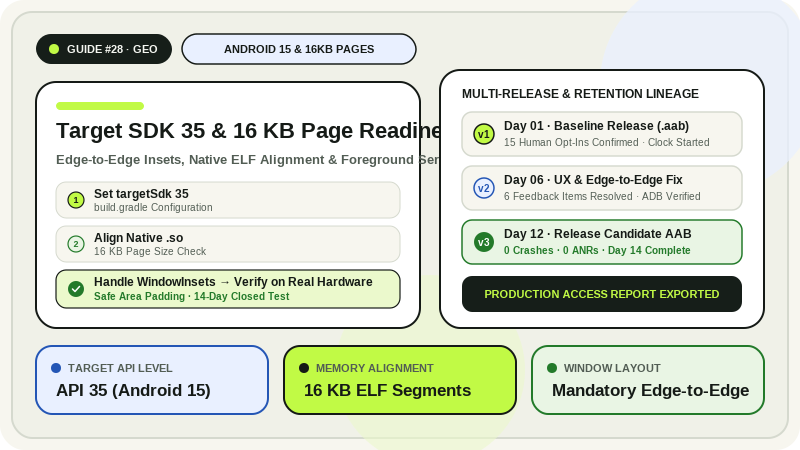
When your Capacitor project targets Android 15 (targetSdk 35), Android enforces edge-to-edge window drawing by default. Unlike older Android versions where the WebView viewport started automatically below the status bar and ended above the navigation bar, Android 15 extends the WebView canvas behind both system bars.
Without explicit inset management, fixed top toolbars in Ionic, Tailwind, or React apps render directly underneath the Android clock and battery icons, while bottom tab bars become unclickable behind the gesture navigation pill. Standard CSS env(safe-area-inset-top) values sometimes report 0px inside Android WebViews unless native window insets are forwarded.
Use the @capacitor/status-bar plugin or a dedicated edge-to-edge Android inset plugin to inject exact system bar pixel heights as CSS custom properties (--safe-area-inset-top and --safe-area-inset-bottom), and verify the layout across gesture and 3-button navigation modes during closed testing.
- Test both Android gesture navigation (thin bottom bar) and legacy 3-button navigation (48dp bottom bar) on physical devices.
- Configure windowSoftInputMode="adjustResize" in AndroidManifest.xml so virtual keyboards do not cover bottom chat or form inputs.
- Disable browser overscroll glow effects or pull-to-refresh where they conflict with native scrolling containers.
- Ensure all interactive buttons meet Google Play's 48x48dp accessibility touch target recommendation.
5. 5. Compiling the Signed Android App Bundle via Gradle bundleRelease
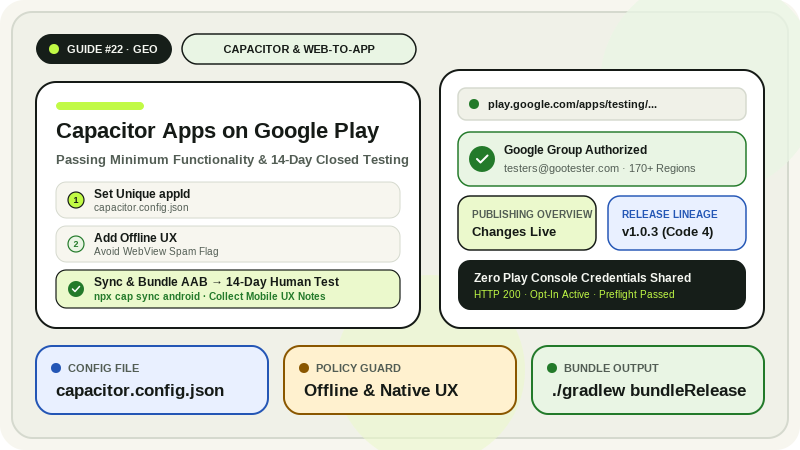
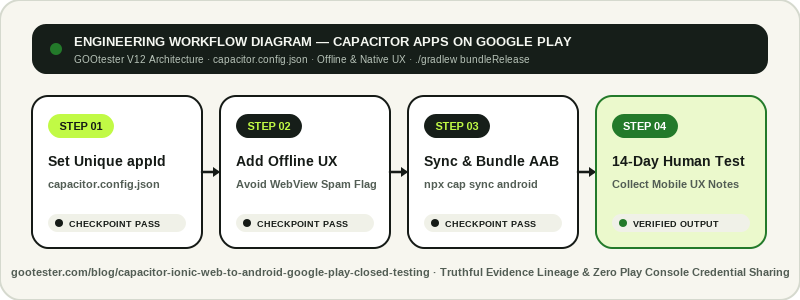
Capacitor follows a deterministic three-stage build pipeline: compile your web bundle (npm run build), synchronize web assets and plugin manifests into the native Android project (npx cap sync android), and compile the signed Android App Bundle using the Gradle wrapper (./gradlew bundleRelease).
Never edit files inside android/app/src/main/assets/public manually, as every subsequent npx cap sync wipes and recreates that folder from your webDir (dist or build). Keep all native Android configuration changes inside android/app/build.gradle, AndroidManifest.xml, and capacitor.config.json.
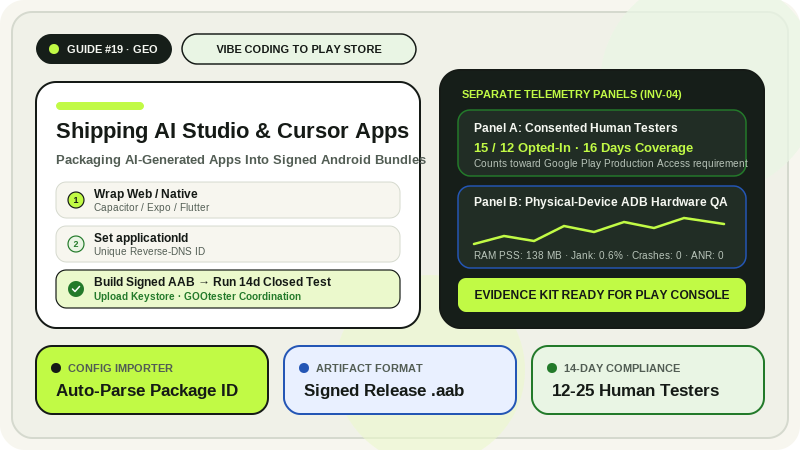
Before starting your 14-day closed test, paste your capacitor.config.json and package.json into GOOtester's Smart Config Importer. It verifies that your appId matches your Google Play package identifier and generates the exact opt-in URLs for your 12-tester cohort.
- Build Production Web Bundle: Run npm run build to generate minified, tree-shaken static HTML/CSS/JS assets with no localhost dev-server references.
- Synchronize Capacitor Native Bridge: Run npx cap sync android to copy dist/ into assets/public and register all Capacitor Android plugins in Gradle.
- Compile Signed Release AAB: Execute cd android && ./gradlew bundleRelease using your upload keystore to produce app-release.aab for Google Play.
6. 6. Using 14-Day Human Tester Feedback to Eliminate Web-Like Rough Edges
Automated static scanners cannot tell whether a Capacitor app feels like a responsive native utility or an awkward desktop website squeezed onto a 6-inch screen. Human testers participating in your 14-day GOOtester campaign immediately notice horizontal scroll leaks, unstyled HTML select dropdowns, slow tap feedback, and missing loading skeletons.
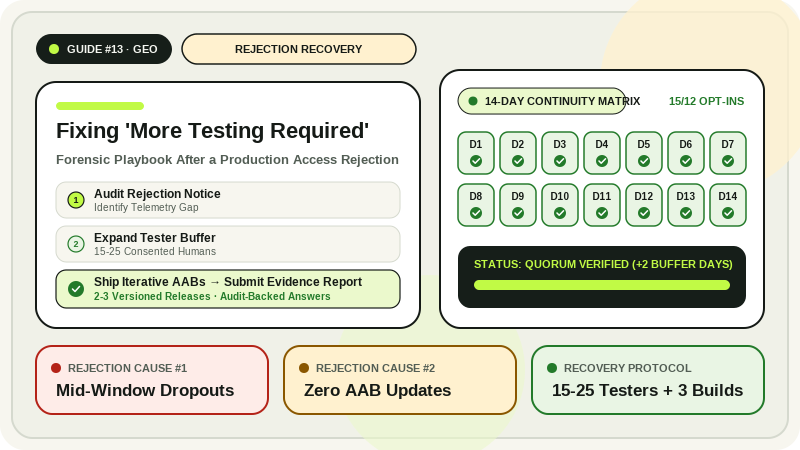
Review the structured UX bug reports collected during Days 1 through 7 of your closed test. When testers highlight layout shifts or back-navigation surprises, patch your frontend components, bump versionCode in android/app/build.gradle, run npx cap sync android, and upload a fresh AAB to your Closed Testing track.
By the time your 14-day eligibility counter completes, your app will have real physical device crash-free telemetry, multiple versionCode iterations, and a polished mobile experience that passes Google Play's manual Production Access review.
Top 3 Web-to-Android UX Fixes Shipped During Closed Testing
Across hundreds of Capacitor campaigns on GOOtester, developers who implement these three polish updates during their 14-day test achieve significantly higher first-attempt Production Access approval rates.
- Apply -webkit-tap-highlight-color: transparent and user-select: none to navigation bars, cards, and buttons.
- Add native haptic micro-feedback (@capacitor/haptics) on primary actions and toggle switches.
- Replace browser alert() and confirm() dialogs with @capacitor/dialog or custom mobile bottom sheets.
Actionable Pre-Submission Verification Checklist
- Remove any development server.url property from capacitor.config.json and verify webContentsDebuggingEnabled is false.
- Confirm all HTML, CSS, JS, and font assets are bundled locally inside android/app/src/main/assets/public via npx cap sync android.
- Test cold-booting your release AAB in Airplane Mode to guarantee a clean offline UI state without WebView error screens.
- Bind @capacitor/app backButton listener so the Android system back gesture navigates in-app routes before exiting.
- Verify Android 15 (targetSdk 35) status bar and gesture bar insets do not overlap fixed top headers or bottom tab bars.
- Ship at least two versionCode updates during your 14-day GOOtester closed test addressing human UX and device feedback.
Frequently Asked Questions
Are Capacitor and Ionic apps allowed on Google Play Store in 2026?
Yes. Google Play welcomes Capacitor and Ionic applications provided they bundle their core frontend assets locally, deliver genuine mobile functionality beyond a static website mirror, handle offline states gracefully without crashing or displaying default browser error screens, and comply with Android 15 (targetSdk 35) requirements.
Why does my Capacitor app show a blank white screen on tester phones after installing from Google Play?
A blank white screen in a release Capacitor AAB is almost always caused by either leaving a development server.url inside capacitor.config.json, using absolute asset paths instead of relative paths (base: './' in vite.config.ts), or failing to run npm run build before npx cap sync android.
Do I need to increment version in package.json or build.gradle when updating my Capacitor closed test?
Google Play Console only reads versionCode and versionName from android/app/build.gradle (or build.gradle.kts), not from your root package.json. Always increment integer versionCode inside android/app/build.gradle before running ./gradlew bundleRelease for a new closed testing upload.
How do I prove domain ownership if my Capacitor app complements my existing web SaaS?
If your Capacitor app wraps or connects to an existing branded web service, verify your domain in Google Search Console using the same Google account or upload verifiable ownership documentation via Google Play Console's Advance Notice form so reviewers confirm you hold authorized rights.