1. 1. Why Google Sign-In Works Locally Yet Fails on Closed Testing
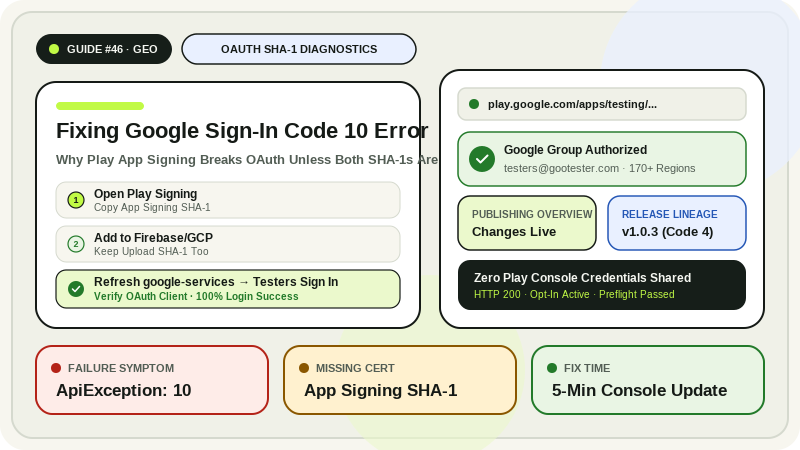
Few bugs derail Day 1 of a 14-day closed testing campaign faster than an authentication wall. You test 'Continue with Google' on your laptop emulator using `debug.keystore`, and you even test a release APK signed with your `upload-keystore.jks` on your personal phone via `adb install`—both log into Firebase Auth or Supabase cleanly. Yet the instant your 12 closed testers download the app from Google Play, tapping Google Sign-In silently fails or throws `com.google.android.gms.common.api.ApiException: 10` (`DEVELOPER_ERROR`, or legacy status code `12500`).
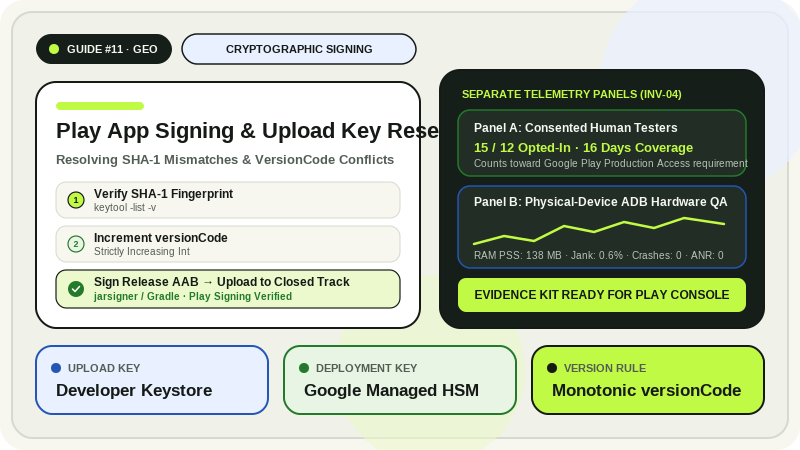
The root cause is **Google Play App Signing's dual-certificate architecture**, which is mandatory for all Android App Bundles (`.aab`). Your local `upload-keystore.jks` only authenticates the upload between your CI/laptop and Play Console. Once Play Console ingests your `.aab`, Google strips your upload signature and re-signs the generated split APKs using a completely separate **App Signing Key** held inside Google's HSM infrastructure.
When Google Play Services on a tester's handset executes an OAuth handshake, it hashes the live APK's signing certificate (`packageName` + `SHA-1`) and compares that tuple against registered Android OAuth 2.0 clients in Google Cloud. Because the handset holds Google's App Signing Key rather than your Upload Key, Google's OAuth server rejects the unrecognized certificate with `DEVELOPER_ERROR`.
| Certificate Tier | Where Key Lives | Which Builds Carry It | Must Register SHA-1 & SHA-256 in Firebase? |
|---|---|---|---|
| Debug Keystore | ~/.android/debug.keystore | Android Studio Run / local debug builds | Yes — enables local emulator & USB debugging |
| Upload Key Certificate | Developer's upload-keystore.jks / CI secret | Local bundletool / release APK sideloads | Yes — enables pre-upload release smoke tests |
| Play App Signing Certificate | Google Play Cloud HSM | All Internal, Closed, Open & Production Play installs | CRITICAL — mandatory for all Play Store testers |
2. 2. Step-by-Step: Registering Play App Signing Fingerprints in Firebase & Cloud Console
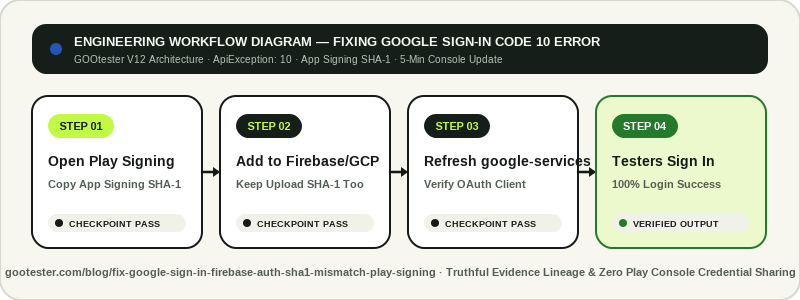
Open your Google Play Console and navigate to **Test and release > Setup > App signing** (or *Release > Setup > App integrity > App signing* in older console layouts). You will see two distinct certificate blocks on the page: **App signing key certificate** at the top, and **Upload key certificate** underneath.
Copy both the **SHA-1 certificate fingerprint** and the **SHA-256 certificate fingerprint** from the **App signing key certificate** block. Next, open Firebase Console > *Project settings > General > Your apps*, select your Android app (`com.example.yourapp`), and click **Add fingerprint** twice to register both hashes alongside your existing debug and upload fingerprints.
Whenever you add a SHA-1 hash in Firebase Console, Firebase automatically provisions a corresponding Android OAuth 2.0 Client ID inside the underlying Google Cloud Console project (*APIs & Services > Credentials*). If you use Google Sign-In directly with Supabase, custom backend JWT verification, or AWS Cognito without Firebase, create that Android OAuth 2.0 Client ID directly inside Google Cloud Console using your package name and Play App Signing SHA-1.
- Locate App Signing Key Certificate in Play Console: Open Play Console > Test and release > Setup > App signing and copy the SHA-1 and SHA-256 strings under 'App signing key certificate' (not Upload key).
- Register Fingerprints in Firebase / Google Cloud: Paste both SHA-1 and SHA-256 fingerprints into Firebase Project Settings (or create an Android OAuth 2.0 credential in Google Cloud Console for non-Firebase backends).
- Verify OAuth Propagation Without Rebuilding (Or Refresh google-services.json): Wait 5 to 15 minutes for Google OAuth edge caches to sync; if your app already embedded the correct Web Client ID, existing Play Store installs start working immediately.
3. 3. Avoiding the Web Client ID vs. Android Client ID Configuration Trap
If you registered the Play App Signing SHA-1 and SHA-256 fingerprints yet `GetCredentialException` / `ApiException: 10` persists, inspect the `serverClientId` string passed into Android's modern **Credential Manager API** (`androidx.credentials` + `com.google.android.libraries.identity.googleid`) or React Native / Flutter / Expo Google Sign-In plugins.
A classic developer mistake is copying the **Android** OAuth Client ID you just created in Google Cloud Console and pasting it into `setServerClientId(...)` (or `webClientId` in `@react-native-google-signin/google-signin`). Android OAuth Client IDs are matched implicitly by Google Play Services via your APK's `packageName` and `SHA-1` signature—they must **never** be passed in code.
Instead, `setServerClientId()` strictly requires your **Web application** OAuth 2.0 Client ID (`client_type: 3` inside `oauth_client` of `google-services.json`, auto-generated as `default_web_client_id`). Passing an Android `client_type: 1` ID guarantees an immediate `DEVELOPER_ERROR`.
import android.content.Context
import androidx.credentials.CredentialManager
import androidx.credentials.GetCredentialRequest
import com.google.android.libraries.identity.googleid.GetGoogleIdOption

suspend fun requestGoogleIdToken(
    activityContext: Context,
    webClientId: String // MUST be OAuth 2.0 Web Application Client ID (client_type: 3)
) {
    val credentialManager = CredentialManager.create(activityContext)

    val googleIdOption = GetGoogleIdOption.Builder()
        .setFilterByAuthorizedAccounts(false)
        .setServerClientId(webClientId)
        .setAutoSelectEnabled(false)
        .build()

    val request = GetCredentialRequest.Builder()
        .addCredentialOption(googleIdOption)
        .build()

    val result = credentialManager.getCredential(
        request = request,
        context = activityContext
    )
    // Exchange result.credential ID token with Firebase / Supabase / backend
}
4. 4. Auditing Google Maps SDK, Places & Play Integrity Certificate Locks
Google Sign-In is not the only integration broken by Play App Signing's certificate swap. Any Google Cloud API key configured under *Application restrictions > Android apps* validates the calling APK's `packageName` + `SHA-1` header on every HTTP request.
If your app embeds the **Google Maps SDK for Android**, **Places API**, **Routes API**, or **Firebase App Check (Play Integrity provider)**, leaving only your debug or upload SHA-1 on your restricted Google Cloud API key causes closed testers to see blank gray map tiles (`Authorization failure` in logcat) or failed App Check attestation tokens.
Audit every restricted API key in Google Cloud Console before inviting `testers@gootester.com` and ensure all three SHA-1 fingerprints—Debug, Upload, and Play App Signing—are listed on each Android key restriction entry.
- Google Maps SDK: Missing Play App Signing SHA-1 renders an empty grid with a Google watermark and zero map tiles on Play-installed builds.
- Firebase App Check (Play Integrity): Requires your Play App Signing SHA-256 fingerprint registered in Firebase Project Settings or backend requests fail with HTTP 401/403.
- Facebook Login / Kakao / LINE SDKs: Convert your Play App Signing SHA-1 hex bytes (not Upload Key!) to a 28-character Base64 Key Hash (`xxd -r -p | openssl base64`).
- Upload Key Reset Recovery: If you ever reset a lost upload keystore via Play Console, your App Signing Key remains unchanged—so tester OAuth stays intact.
5. 5. Confirming Live Play-Signed Certificates via ADB & apksigner
When troubleshooting multi-flavor projects (`dev`, `staging`, `prod`) or Expo EAS / Flutter build pipelines, never guess which signing certificate is active on a device or which Firebase project `google-services.json` was compiled into your `.aab`.
Install your app directly from your Google Play Closed Testing link onto a test handset and inspect the live package signature via `adb` or pull the base APK path to run `apksigner verify --print-certs`. Comparing that exact terminal output against Play Console > *App signing* and Firebase Console eliminates every assumption in under 60 seconds.
During standalone physical-device ADB QA runs on GOOtester, our diagnostic harness automatically captures `ApiException`, `FirebaseAuthException`, and `GoogleMaps` authorization warnings from `logcat` so authentication regressions are flagged immediately.
#!/usr/bin/env bash
set -euo pipefail

PKG="com.example.yourapp"
BASE_APK_PATH=$(adb shell pm path "$PKG" | grep "base.apk" | cut -d':' -f2 | tr -d '\r')

mkdir -p /tmp/apk-cert-check
adb pull "$BASE_APK_PATH" /tmp/apk-cert-check/base.apk

# Prints exact SHA-256 and SHA-1 digests of the Play-delivered binary
apksigner verify --print-certs /tmp/apk-cert-check/base.apk
6. 6. Protecting Your 12-Tester Cohort & Play Reviewers from Login Dead-Ends
A broken Google Sign-In button on Day 1 creates two compounding problems: first, your 12+ human testers cannot enter the core app UI to exercise screens and generate rich engagement telemetry; second, Google Play policy reviewers who encounter a broken sign-in screen reject the build under the **Broken Functionality** policy.
Alongside registering your Play App Signing SHA-1 and SHA-256 hashes, always provide a secondary email/password or magic-code reviewer login (for example, `developer@example.com` with a static test PIN) and record those credentials under *Play Console > Policy and programs > App content > App access*.
Once verified, bind `testers@gootester.com` to your Closed Testing track's Google Groups list so real human testers can authenticate smoothly, explore your full feature set, and keep your 14-day compliance streak uninterrupted.
Actionable Pre-Submission Verification Checklist
- Copy both SHA-1 and SHA-256 fingerprints from Play Console > Setup > App signing under 'App signing key certificate' (not Upload key).
- Register Debug, Upload, and Play App Signing SHA-1/SHA-256 hashes inside Firebase Project Settings > Your apps.
- Confirm Credential Manager's setServerClientId() receives your Web application OAuth 2.0 Client ID (client_type: 3), never an Android Client ID.
- Add your Play App Signing SHA-1 to any Android-restricted Google Cloud API keys powering Google Maps, Places, or Routes.
- Supply working fallback demo login credentials inside Play Console > App content > App access for Google policy reviewers.
- Download your live Closed Testing release from the Play Store on a device and verify end-to-end Google Sign-In before inviting testers@gootester.com.
Frequently Asked Questions
Do I need to build and upload a new .aab after adding the Play App Signing SHA-1 to Firebase?
Usually no! If your published .aab already contains the matching packageName and the correct Web application Client ID (default_web_client_id), adding the missing Play App Signing SHA-1 in Firebase / Google Cloud updates Google's OAuth backend within 5 to 15 minutes without a binary rebuild.
Why are there two different SHA-1 certificates on Play Console's App Signing page?
The bottom 'Upload key certificate' verifies builds uploaded from your machine or CI to Play Console, then Google removes it. The top 'App signing key certificate' is what Google Play uses to sign the actual APKs installed on tester and user phones.
What causes ApiException: 12500 vs ApiException: 10 in Google Sign-In?
ApiException: 10 (DEVELOPER_ERROR) almost always points to an unregistered Play App Signing SHA-1 or passing an Android Client ID instead of a Web Client ID. Error 12500 typically indicates an incomplete OAuth consent screen in Google Cloud Console (such as a missing support email).
Does resetting my lost Upload Key break Google Sign-In for existing Closed Testing or Production users?
No. Resetting your Upload Key only changes the key you use to upload future .aab files to Play Console. Your cloud-managed Play App Signing Key certificate stays identical, so Firebase Auth and Google Sign-In continue working seamlessly.