1. 1. Upload Key vs. App Signing Key: How Play App Signing Actually Works
Since August 2021, Google Play has required all new applications to publish using the Android App Bundle (.aab) format backed by Play App Signing. Despite being mandatory, Play App Signing's dual-key cryptographic model remains one of the most misunderstood areas of Android release engineering—especially when developers hit an 'uploaded an APK or Android App Bundle that is signed with a key that is also used to sign APKs that are delivered to users' or SHA-1 mismatch error.
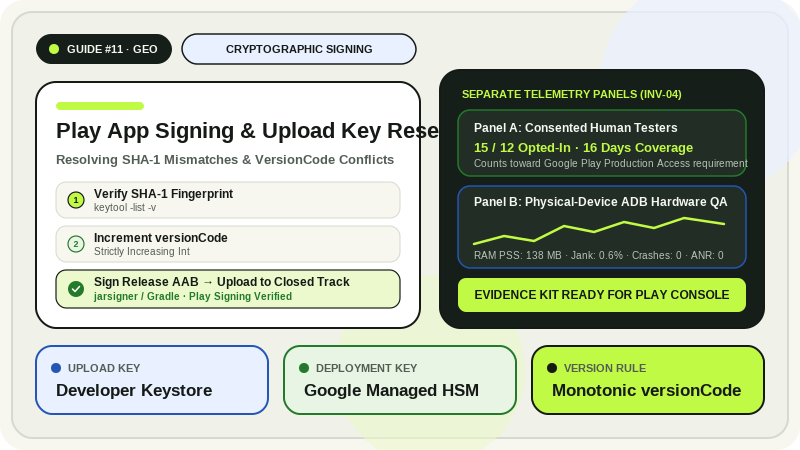
Under Play App Signing, two distinct asymmetric keypairs exist. First is your **Upload Key**, which resides inside your local `.jks` or `.keystore` file (or inside managed cloud builders like Expo EAS credentials or GitHub Actions secrets). You sign your `.aab` locally with the Upload Key solely so Google Play Console can verify that the upload came from an authorized developer.
When Play Console receives your `.aab`, it verifies and strips your Upload Key signature, generates optimized APK splits for each device architecture, and re-signs those splits using the **App Signing Key**, which lives permanently inside Google's hardware security modules. Because end-user Android devices only ever see the Google-held App Signing Key, you can reset a lost local Upload Key without breaking app updates for your existing closed testers.
| Key Type | Where Private Key Lives | Used to Sign What? | Can It Be Reset If Lost? |
|---|---|---|---|
| Upload Key | Developer workstation, CI secrets, or Expo EAS keystore vault | The .aab file uploaded to Google Play Console | Yes (Self-service Upload Key Reset in Play Console; 48h cooling window) |
| App Signing Key | Google Cloud KMS / Play App Signing infrastructure | Final split APKs delivered to testers' Android smartphones | Restricted (Managed by Google; copy public SHA-1/SHA-256 for Firebase/OAuth) |
| Debug Key (debug.keystore) | Auto-generated in ~/.android/debug.keystore by Android Studio | Local emulator/USB test builds only | Rejected by Google Play Console on upload |
2. 2. Diagnosing 'Your Android App Bundle Is Signed With the Wrong Key' (SHA-1 Mismatch)
The dreaded SHA-1 mismatch error states: 'Your Android App Bundle is signed with the wrong key. Ensure that your App Bundle is signed with the correct signing key and try again. Your App Bundle is expected to be signed with the certificate with fingerprint: SHA1: AA:BB:CC... but the certificate used to sign the App Bundle you uploaded has fingerprint: SHA1: 11:22:33...' This message is completely deterministic and provides both the expected and actual fingerprints.
In ninety percent of cases, the developer has not actually lost their original key; rather, they accidentally built the new `.aab` on a second laptop, switched between a local Gradle keystore and an auto-generated cloud CI keystore, or specified the wrong key alias inside `build.gradle`. Before requesting an upload key reset, always search your workstation, password manager, and cloud build dashboard for the keystore matching the expected SHA-1.
You can inspect both your local keystore file and your compiled `.aab` artifact directly from the terminal using the standard JDK `keytool` utility. Comparing the SHA-1 output of the commands below against the 'Upload key certificate' listed in Play Console under Test and release -> Setup -> App signing pinpoints the exact discrepancy in seconds.
# 1. Print the SHA-1 and SHA-256 fingerprint used to sign a compiled .aab file
keytool -printcert -jarfile app-release.aab | grep -E "Owner:|SHA1:|SHA256:"

# 2. List all aliases and SHA-1 fingerprints inside a local .jks or .keystore file
keytool -list -v -keystore release-upload-key.jks

# 3. If generating a brand-new upload key + PEM certificate for a Play Console Upload Key Reset:
keytool -genkeypair -v -keystore new-upload-key.jks -alias upload -keyalg RSA -keysize 2048 -validity 9125
keytool -export -rfc -keystore new-upload-key.jks -alias upload -file upload_certificate.pem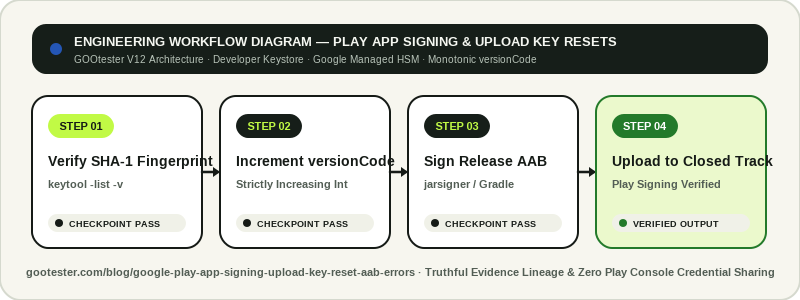
3. 3. Step-by-Step: Executing a Play Console Upload Key Reset Without Losing Testing Days
If your original upload keystore is genuinely irrecoverable—for example, after an unbacked-up drive failure—never create a new application in Play Console with a new package name if you have already started your 14-day closed testing campaign. Creating a new package ID resets your 14-day testing clock back to Day 0. Instead, perform an in-place Upload Key Reset on your existing app.
First, generate a fresh `.jks` keystore and export its public certificate in RFC PEM format (`upload_certificate.pem`) using the `keytool -export -rfc` command shown above. Next, log into Google Play Console as the Account Owner and navigate to Test and release -> Setup -> App signing. Locate the 'Upload key certificate' card and click 'Request upload key reset'.
Select the reason for the reset, upload your `upload_certificate.pem` file, and confirm the request. Google immediately sends a security confirmation email and enforces a mandatory 48-hour security cooling period before the new upload key becomes active. During those 48 hours, your currently active Closed Testing release continues running uninterrupted on all 12+ tester devices, so your 14-day continuous opt-in streak is completely preserved.
- Generate New Keystore and Export PEM Certificate: Run keytool -genkeypair to create new-upload-key.jks, then run keytool -export -rfc to export upload_certificate.pem.
- Open Play Console App Signing Settings: Log in as the Play Console Account Owner and go to Test and release -> Setup -> App signing.
- Submit Upload Key Reset Request: Click 'Request upload key reset', attach upload_certificate.pem, and submit the form.
- Wait for the 48-Hour Security Cooling Window: Your existing Closed Testing build stays live for testers while Google's 48-hour key rotation timer completes.
4. 4. Resolving 'Version Code Has Already Been Used' Across Internal and Closed Tracks
The second most frequent AAB upload rejection during closed testing is: 'Version code X has already been used. Try another version code.' Developers often assume that version codes are scoped per track—believing they can upload `versionCode 1` to Internal Testing, delete the draft, or upload `versionCode 1` again to Closed Testing. In Google Play Console, `versionCode` is a globally unique, monotonically increasing integer across the entire application entry.
Once an Android App Bundle with `versionCode 5` is uploaded to Play Console's App Bundle Explorer—even if it was only saved as an unrolled-out draft on the Internal Testing track and later discarded—`versionCode 5` can never be uploaded again as a new file. However, you do not need to recompile your app if you simply want to move that exact same `versionCode 5` build from Internal Testing to Closed Testing.
Instead of uploading the `.aab` file a second time, either click 'Promote release' -> 'Closed testing' directly on your Internal Testing release card, or click 'Add from library' when creating your Closed Testing release to select `versionCode 5` from Play Console's App Bundle Explorer. When compiling a brand-new binary with code fixes, always increment `versionCode` (e.g., to `6`) while optionally updating the human-readable `versionName` (e.g., `1.0.6`).
5. 5. The Firebase / Google Sign-In SHA-1 Trap After Play App Signing
Here is a critical failure mode that catches countless apps on Day 1 of Closed Testing: Google Sign-In, Firebase Phone Authentication, or Google Maps SDK works flawlessly when you install the app directly onto your phone via USB (`adb install`), yet fails silently when testers download the exact same release from the Google Play Store Closed Testing track.
The root cause goes right back to the dual-key architecture explained in Section 1. When you tested locally, your build was signed with your Debug Key or local Upload Key, and you registered that local SHA-1 inside Firebase Console or Google Cloud Console OAuth credentials. When Google Play delivers your app to closed testers, Google strips your Upload Key and re-signs the APK splits with Google's **App Signing Key**.
To fix Google Sign-In and Firebase Authentication for all closed testers without shipping a new build, open Play Console -> Test and release -> Setup -> App signing, copy the SHA-1 and SHA-256 fingerprints listed under **App signing key certificate** (top card), and add both fingerprints to your Firebase Project Settings -> Your Apps -> SHA certificate fingerprints (and download the updated `google-services.json` if needed).
- Always register BOTH the 'App signing key certificate' SHA-1/SHA-256 and the 'Upload key certificate' SHA-1/SHA-256 in Firebase Console.
- Verify that your package name (`applicationId` in `build.gradle`) matches `com.yourcompany.app` identically across Play Console and `google-services.json`.
- Never ship an AAB with `applicationId` set to `com.example.*`, as Google Play Console permanently rejects placeholder `com.example` package identifiers.
- Back up your upload keystore (`.jks`), keystore password, key alias, and key password in an encrypted team vault before uploading your first AAB.
6. 6. Best Practices for Shipping Iterative AAB Updates During Your 14-Day Window
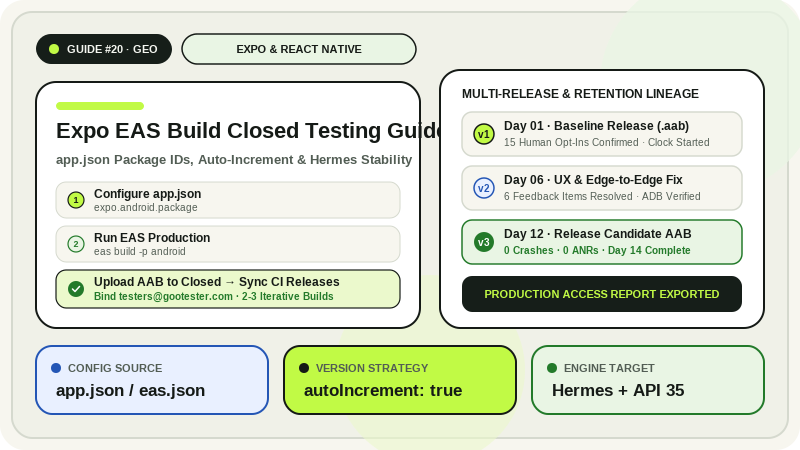
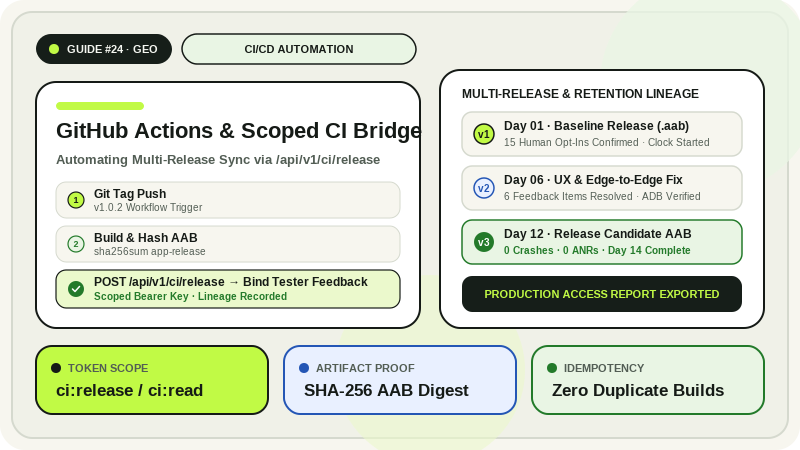
During your 14-day closed testing campaign with GOOtester, shipping one or two well-tested Android App Bundle updates in response to tester feedback is one of the strongest signals of genuine pre-production engineering you can show Google's Production access reviewers. When your signing pipeline and `versionCode` numbering are deterministic, shipping an update takes less than ten minutes.
Before building a mid-test update, open Play Console -> Test and release -> App bundle explorer and note the highest existing `versionCode` across all tracks. Set your next build's `versionCode` to `highest + 1`, build and sign the `.aab` with your verified Upload Key, and verify its SHA-1 locally with `keytool -printcert -jarfile app-release.aab`.
Upload the new bundle to your active Closed Testing track, enter clear release notes summarizing the bugs fixed or feedback addressed, click Next -> Save, and verify in Publishing Overview that the update is submitted with Managed Publishing off. Your 12+ opted-in testers will automatically receive the update via Google Play without losing a single hour of your 14-day streak.
Actionable Pre-Submission Verification Checklist
- Verify your compiled .aab is signed with your production Upload Key (not debug.keystore) using keytool -printcert -jarfile.
- Compare your local Upload Key SHA-1 against Play Console -> Test and release -> Setup -> App signing -> Upload key certificate.
- Copy the 'App signing key certificate' SHA-1 and SHA-256 from Play Console into Firebase / Google Cloud OAuth credentials.
- Check App bundle explorer before every build and increment versionCode strictly above the highest existing number across all tracks.
- Use 'Promote release' or 'Add from library' if moving an already-uploaded versionCode from Internal Testing to Closed Testing.
- Store a redundant backup of your upload .jks file and credentials in an encrypted password manager before starting Day 1.
Frequently Asked Questions
If I request an Upload Key Reset in Play Console during my 14-day closed test, does it reset my 14-day timer?
No. Requesting an Upload Key Reset only rotates the certificate used to authenticate future .aab uploads to Play Console after a 48-hour security cooling period. Your currently active Closed Testing release remains live on the Play Store and all 12+ testers remain continuously opted in.
Why does Google Sign-In fail on the Play Store Closed Testing version of my app when it worked on my local release build?
Under Play App Signing, Google strips your local Upload Key signature and re-signs the store-delivered APKs using Google's cloud App Signing Key. You must copy the SHA-1 and SHA-256 fingerprints from the 'App signing key certificate' section in Play Console (Setup -> App signing) and add them to your Firebase / Google Cloud OAuth client.
How do I fix 'Version code has already been used' if I only uploaded that build to Internal Testing?
Version codes in Google Play Console are globally unique per app across all tracks (Internal, Closed, Open, and Production). To reuse the exact same build on Closed Testing, click 'Promote release' from Internal Testing or choose 'Add from library' inside the Closed Testing release screen. If you rebuilt the code, increment versionCode by at least +1.
Can I change my app's package name (applicationId) after uploading my first AAB to Closed Testing?
No. Once the very first binary is uploaded to any track in a Google Play Console app entry, the package name (applicationId) is permanently bound to that entry. Always verify your final reverse-domain applicationId before uploading your first build and starting your 14-day test.