1. 1. The Four-Track Distribution Architecture of Google Play Console
Google Play Console organizes application lifecycle management into a four-tier hierarchy: Internal Testing, Closed Testing, Open Testing, and Production. While all four tracks consume signed Android App Bundles (`.aab`) from your central Artifact Library and distribute optimized device splits via Google Play App Signing, they behave very differently in terms of policy review enforcement, discoverability, and compliance telemetry.
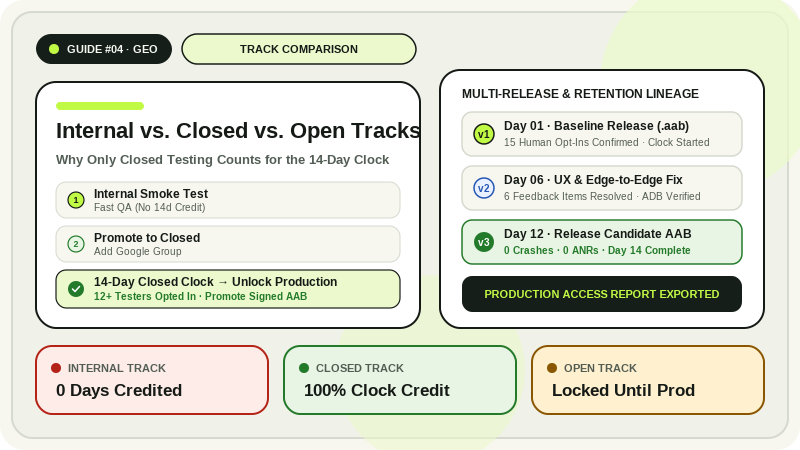
For developers operating a Personal Developer Account created after November 13, 2023, understanding the boundary between these tracks is mission-critical. Google Play's compliance state machine binds the 12-tester, 14-day requirement exclusively to the Closed Testing tier. Neither Internal Testing nor Open Testing satisfies the statutory gate required to unlock the Apply for Production workflow.
Below is the comprehensive architectural matrix comparing all four Play Console distribution tracks across policy review latency, tester authentication mechanisms, maximum capacity, and Production Access counter eligibility.
| Track Dimension | Internal Testing | Closed Testing | Open Testing | Production |
|---|---|---|---|---|
| Counts Toward 12-Tester / 14-Day Rule? | No (Never increments counter) | Yes (Mandatory compliance track) | No (Locked until closed test / ineligible) | N/A (Target destination) |
| Google Play Policy Review Required? | No (Available in ~60 seconds) | Yes (Initial review takes 12–72 hrs) | Yes (Full policy & metadata review) | Yes (Full production review) |
| Tester Access Control | Email list only (Max 100 users) | Google Groups (testers@gootester.com) or Email list | Publicly searchable / open URL | Public worldwide Play Store |
| Google Groups Delegation Supported? | No (Manual email entry only) | Yes (Native Google Groups integration) | Not applicable (Open to public) | Not applicable |
| Public Store Reviews & Star Ratings? | Private feedback only | Private developer feedback channel | Private beta feedback channel | Public star ratings & reviews |
2. 2. The Two-Week Trap: Why Internal Testing Never Counts Toward Production Access
The single most painful time-sink we diagnose for new Android developers is the 'Internal Testing Trap.' A developer builds their `.aab`, opens Play Console, sees 'Internal testing' at the top of the Testing sidebar, uploads their build, invites 12 friends via email, and waits two full weeks—only to discover on Day 15 that their Dashboard still shows `0 of 14 days completed`.
Why does Google exclude Internal Testing from the 14-day compliance clock? The reason is architectural: releases pushed to Internal Testing bypass Google Play's automated and human policy review pipeline so that engineering teams can test freshly compiled builds within 60 seconds of a CI/CD commit. Because Google has not yet reviewed the binary on an Internal track for malware, Data Safety compliance, or content policy adherence, Google cannot count Internal installs as verified pre-production testing.
Additionally, Internal Testing does not support Google Groups delegation—it only accepts manually typed individual email lists capped at 100 accounts. You can instantly spot whether a link belongs to Internal Testing or Closed Testing by inspecting the opt-in screen wording in your browser.
3. 3. Closed Testing Mechanics: Alpha Tracks, Custom Tracks & Google Groups
By default, every new app created in Google Play Console includes one pre-provisioned Closed Testing track named `Closed testing - Alpha`. Developers can also create additional custom-named Closed Testing tracks (for example, `closed-qa-sprint` or `release-candidate`) if they wish to test different feature branches simultaneously.
To satisfy the 12-tester, 14-day mandate, all 12+ required testers should be concentrated on a single active Closed Testing track (typically the default `Closed testing - Alpha` track) rather than fragmented across three separate custom tracks with four testers each. Play Console evaluates the 14-day consecutive opt-in invariant at the track level, requiring a unified cohort on one active closed track.
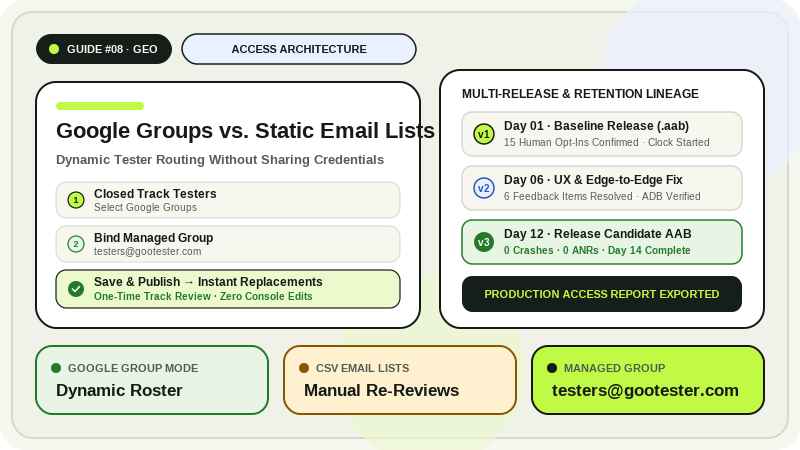
Unlike Internal Testing, Closed Testing provides native integration with Google Groups. When you switch the Testers tab on your Closed Testing track from 'Email lists' to 'Google Groups' and enter `testers@gootester.com`, Google Play delegates access control to that group descriptor while maintaining full policy review and opt-in telemetry tracking.
- Default Track: Use the built-in `Closed testing - Alpha` track unless you have a specific multi-branch enterprise requirement.
- Review Prerequisite: Your initial Closed Testing release must pass Google's policy review (status: `Available to testers`) before testers can install it.
- Google Groups Advantage: Binding `testers@gootester.com` eliminates manual CSV uploads and allows instant tester replacements if needed.
- Private Feedback Protection: Any criticism or bug reports submitted by closed testers go strictly to your private Play Console inbox, never to public Store reviews.
4. 4. Why Open Testing Cannot Replace the 12-Tester Closed Testing Gate
Some developers look at the Play Console sidebar, see 'Open testing' located right above 'Closed testing,' and assume that launching an Open Beta will satisfy or bypass the 12-tester requirement. Under Google Play's current rules for Personal Developer Accounts created after November 13, 2023, Open Testing is not a valid bypass.
First, on newly created Personal Developer Accounts, Google Play locks public Open Testing distribution alongside Production until the mandatory 12-tester, 14-day Closed Testing gate and Production Access review are approved. That prevents bad actors from using an unlimited Open Beta listing on the public Play Store as a backdoor alternative to Production.
Second, even after an app unlocks Production Access, Open Testing serves a completely different purpose: large-scale public load testing where thousands of anonymous Play Store visitors can join a beta program without an invitation link. For your initial 14-day compliance cycle, Closed Testing is the only recognized track.
{
  "accountType": "PERSONAL_POST_NOV_2023",
  "tracks": {
    "INTERNAL": { "unlockedAtCreation": true, "countsFor14DayGate": false, "maxTesters": 100 },
    "CLOSED_ALPHA": { "unlockedAtCreation": true, "countsFor14DayGate": true, "supportsGoogleGroups": true },
    "OPEN_BETA": { "unlockedAtCreation": false, "requiresProductionAccessApproval": true, "countsFor14DayGate": false },
    "PRODUCTION": { "unlockedAtCreation": false, "requires12Testers14DaysOnClosed": true }
  }
}
5. 5. Step-by-Step: How to Promote an Internal Build to Closed Testing Without Rebuilding
What is the proper workflow for using Internal Testing and Closed Testing together? Experienced Android release engineers use Internal Testing for the first 30 minutes of a build's life—verifying that Play App Signing succeeds, Google Sign-In OAuth SHA-1 fingerprints match, and the production API endpoint responds—and then immediately promote that exact artifact to Closed Testing.
If you already uploaded your `.aab` to Internal Testing, you do not need to bump your `versionCode` in Android Studio or re-upload the binary to move it into Closed Testing. Play Console includes a one-click promotion workflow that copies the signed artifact reference directly into your `Closed testing - Alpha` track.
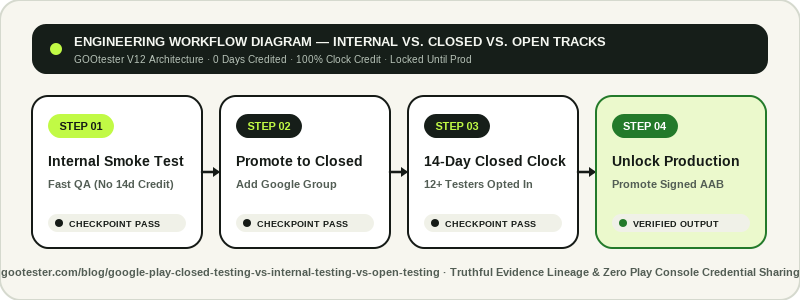
Follow the four steps below to migrate a build from Internal Testing to Closed Testing and activate your 14-day compliance pipeline with GOOtester.
- Open Internal Testing Releases: In Google Play Console, go to Release > Testing > Internal testing and locate your active release under the Releases tab.
- Click Promote Release > Closed Testing: Click the Promote release dropdown button on the right side of the release card and select Closed testing - Alpha.
- Configure Countries & Bind testers@gootester.com: Before publishing, open Release > Testing > Closed testing > Manage track, enable all Countries/regions, and add testers@gootester.com under Testers > Google Groups.
- Submit for Review & Retrieve the Closed Web Opt-In Link: Save and publish the promoted Closed Testing release via Publishing overview. Once Google approves the review, copy the Web opt-in link from the Closed Testing Testers tab.
6. 6. Pre-Flight Verification: Confirming Your Closed Track Is Ready for Testers
Before submitting your application to GOOtester, running a 60-second pre-flight check prevents the three most common configuration errors that delay Day 1 of the 14-day clock. Note that the Web Opt-In URL format (`https://play.google.com/apps/testing/<package_name>`) looks identical on the surface whether a build is served from Internal or Closed Testing—Google Play resolves the highest-priority track that the visiting user's account is authorized to access.
Therefore, if your own developer email address is still listed on an old Internal Testing email list with a higher `versionCode` than your Closed Testing track, opening the opt-in URL from your own account will show you the Internal track instead of the Closed track. To avoid confusion, always keep your Closed Testing `versionCode` equal to or higher than any Internal Testing release during the 14-day compliance window.
With GOOtester, our onboarding system automatically inspects your track readiness before starting your service clock. Remember: our service clock never starts at checkout—it starts only after your Closed Testing configuration is verified and our human testers have joined your test.
Actionable Pre-Submission Verification Checklist
- Verify that your latest signed .aab is published on Release > Testing > Closed testing (e.g., Closed testing - Alpha), not solely on Internal testing.
- Confirm that the versionCode on your Closed Testing track is greater than or equal to any versionCode on your Internal Testing track.
- Check the Countries / regions tab inside your Closed Testing track and ensure all global regions are enabled.
- Under Closed Testing > Testers, select Google Groups, enter testers@gootester.com, and click Save changes.
- Check Publishing overview to ensure no pending Closed Testing changes are sitting in an unsubmitted draft state.
- Wait for the Closed Testing release status to read 'Available to testers' before expecting the 14-day Play Console counter to increment.
Frequently Asked Questions
Why have my 12 testers been installed for 5 days on Internal Testing with 0 days showing on the Dashboard?
Internal Testing does not count toward Google Play's 12-tester, 14-day compliance requirement. Only the Closed Testing track increments the Production Access unlock counter. You must promote your release from Internal Testing to Closed Testing, wait for Google's initial track review approval, and have 12+ testers opted into the Closed track.
Does the Web Opt-In URL change when I promote an app from Internal Testing to Closed Testing?
The Web Opt-In URL (`https://play.google.com/apps/testing/your.package.name`) stays the same, because Google Play dynamically routes each tester to the track their account is authorized to access. Once you bind `testers@gootester.com` to your Closed Testing track and publish an approved Closed release, members of our group are routed directly to your Closed track.
Can I use Internal Testing at the same time as my 14-day Closed Testing cycle?
We recommend promoting every bug-fix build directly to your active Closed Testing track during the 14-day window rather than leaving newer builds exclusively on Internal Testing. Pushing updates to Closed Testing both prevents versionCode precedence conflicts and creates the iterative release history that Google Play reviewers look for.
Can I switch to Open Testing instead of finding 12 Closed Testers?
No. On Personal Developer Accounts created after November 13, 2023, Open Testing is locked and cannot be used to bypass the mandatory 12-tester, 14-day Closed Testing gate. You must complete 14 consecutive days on a Closed Testing track first.