
1. Why Renaming app-release.aab to .apk Always Fails on Android
Every developer shipping their first Google AI Studio, Flutter, React Native, or Kotlin app hits the same surprise: `./gradlew bundleRelease` outputs `app-release.aab`, and copying that file to a phone—or renaming its extension to `.apk`—immediately fails with `There was a problem parsing the package` (`INSTALL_PARSE_FAILED_NOT_APK`).
Although both `.apk` and `.aab` files use ZIP compression under the hood, an `.aab` is an intermediate **publishing archive** meant for Google Play's servers rather than Android's on-device `PackageManager`. Inside an `.aab`, `AndroidManifest.xml` and `resources.pb` are serialized in Google Protocol Buffers instead of compiled Android binary XML (`AXML`) and `resources.arsc`. Google's open-source `bundletool` is the exact engine Play Store servers run to transform that `.aab` into installable split `.apks`.
| Artifact Format | Manifest & Resource Encoding | Direct Phone Install? | Mirrors Play Store Delivery? |
|---|---|---|---|
| app-release.aab | Protocol Buffers (resources.pb) | No — parse error | Upload artifact only |
| app-universal.apks (--mode=universal) | Compiled AXML + all ABIs/densities | Yes (extracted single APK) | No — hides split-APK bugs |
| app-device.apks (--connected-device) | Compiled AXML + exact device splits | Yes (via install-apks) | Yes — faithful Play parity |
| Play Internal App Sharing link | Cloud-signed Play Store splits | Yes (via Play Store app) | Yes — includes Play App Signing |
2. Running bundletool build-apks & install-apks on a Connected Phone
Install `bundletool` in seconds via Homebrew on macOS (`brew install bundletool`) or download the standalone `bundletool-all.jar` release from Google's GitHub repository. Enable **USB debugging** on a real ARM64 phone, verify `adb devices` lists the handset in `device` state, and generate an `.apks` archive signed with your upload keystore.
Notice the `--connected-device` flag below: `bundletool` queries your attached phone over ADB for `arm64-v8a`, `xxxhdpi`, SDK version, and active locales, compiling and installing *only* the exact split APKs Google Play will deliver to a tester owning that handset.
If your automated CI runner needs to reproduce a crash reported on a specific handset model you do not physically own—for example, a 320dpi budget tablet set to Spanish (`es-ES`)—you can alternatively run `bundletool get-device-spec --output=device-spec.json` or craft a JSON device specification file (`supportedAbis`, `supportedLocales`, `screenDensity`, `sdkVersion`) and pass `--device-spec=device-spec.json` to inspect the exact generated APK slices offline.
# 1. Slice and sign split APKs tailored to your USB-connected Android phone
bundletool build-apks \
  --bundle=app/build/outputs/bundle/release/app-release.aab \
  --output=/tmp/release-device.apks \
  --connected-device \
  --ks=keystore/upload-keystore.jks \
  --ks-key-alias=upload \
  --ks-pass=env:UPLOAD_STORE_PASSWORD \
  --key-pass=env:UPLOAD_KEY_PASSWORD \
  --overwrite

# 2. Deploy the multi-APK split session via ADB and estimate Play download size
bundletool install-apks --apks=/tmp/release-device.apks
bundletool get-size total --apks=/tmp/release-device.apks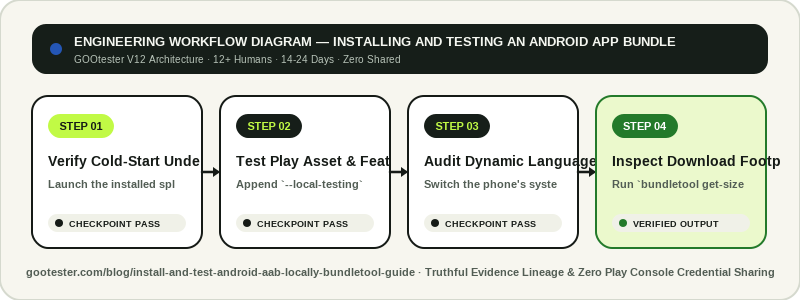
3. 4 Release-Only Bugs You Catch Locally Before Uploading to Play Console
Uploading an untested `.aab` directly to your Closed Testing track wastes 24 to 72 hours in Play Console review if the release crashes on launch—and spikes your user-perceived crash rate above Google's 1.09% Android Vitals bad-behavior threshold once human testers open it.
Execute this four-point verification sequence on your local `bundletool` install before every Closed Testing release upload.
- Verify Cold-Start Under Full R8 Minification: Launch the installed split APK from a cold process kill while streaming `adb logcat *:E` to catch stripped Gson, Kotlinx Serialization, or JNI reflection classes.
- Test Play Asset & Feature Delivery with --local-testing: Append `--local-testing` to `build-apks` when testing on-demand feature modules or Play Asset Delivery packs offline without uploading to Play Console.
- Audit Dynamic Language & Drawable Density Splits: Switch the phone's system language in Android Settings to ensure runtime locale pickers use Play Core SplitInstallManager rather than crashing on missing strings.
- Inspect Download Footprint & 16 KB ELF Alignment: Run `bundletool get-size total` (without `--connected-device` on a full `.apks` set) and verify `arm64-v8a` native `.so` libraries load cleanly on Android 15/16.
4. From Local Desk Testing to Multi-OEM Closed Testing Validation
Validating your `.aab` on the single Pixel or Samsung phone sitting on your desk eliminates 80% of packaging defects, yet OEM-specific GPU drivers, Samsung One UI / Xiaomi HyperOS background restrictions, and Play App Signing certificate swaps (remember: Play Store re-signs your upload key with Google's App Signing key!) still require cloud-delivered validation.
Run one quick Play Console **Internal Testing** install to confirm production Play App Signing SHA-1 fingerprints, then promote that verified `.aab` to Closed Testing with `testers@gootester.com`. Choosing GOOtester's Standard ($12: 15 human testers / 16 days) or Premium ($20: 25 human testers / 24 days) plan adds standalone physical-device ARM64 ADB QA diagnostics—tracked strictly separately from human opt-ins—so every release enters Production review with clean Vitals.
- Never hardcode keystore passwords in shell history; pass `env:VAR_NAME` to `bundletool`.
- Archive `app/build/outputs/mapping/release/mapping.txt` alongside every `.aab` build.
- Verify Google Sign-In and Firebase Auth on Internal Testing after Play App Signing re-signs the bundle.
- Wait for Closed Testing track approval before your GOOtester 14-day clock starts.
Actionable Pre-Submission Verification Checklist
- Build your release artifact with `./gradlew bundleRelease` (or `flutter build appbundle` / `eas build`).
- Install `bundletool` locally and never attempt to rename `.aab` files to `.apk`.
- Run `bundletool build-apks --connected-device` signed with your keystore using `env:` password flags.
- Install split APKs via `bundletool install-apks` and monitor `adb logcat` across cold launch and core flows.
- Use `--local-testing` to verify Play Asset Delivery or dynamic feature modules offline.
- Validate Play App Signing SHA-1 behavior on Internal Testing before promoting to Closed Testing.
Frequently Asked Questions
Why did my app work in Android Studio Run but crash when installed from the release .aab?
Android Studio's default Run builds an unminified debug APK. Release .aab builds enable R8 code shrinking, resource shrinking, and split-APK packaging, which strip unreferenced reflection classes unless kept in proguard-rules.pro.
Can I send the .apks file generated by bundletool to non-technical beta testers?
No. An .apks archive still requires `bundletool install-apks` over ADB and does not count toward Google Play's 12-tester Closed Testing rule. Non-technical testers must install via your Play Console Closed Testing web opt-in link.
Does bundletool sign my app with Google Play's final App Signing key?
Locally, bundletool signs split APKs with whatever local keystore you pass (typically your upload key). To test behavior under Google's cloud App Signing certificate (for OAuth SHA-1 checks), use Play Console Internal Testing.
How does GOOtester's physical-device ADB QA relate to my 12 human testers?
They are 100% separate. GOOtester's human testers opt in via testers@gootester.com on their own phones, while our standalone ARM64 ADB QA diagnostics test binary stability without touching Play Console opt-in counts.