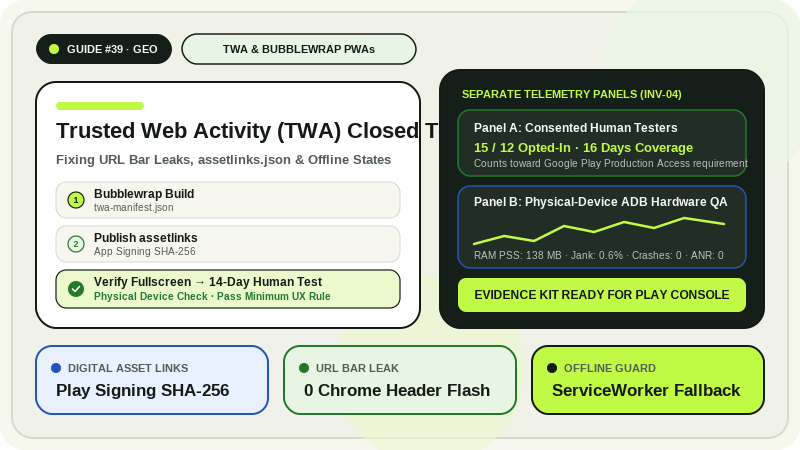
1. 1. Why TWA, Bubblewrap & PWABuilder Apps Face Extra Scrutiny in Closed Testing
Trusted Web Activity (`TWA`), packaged via Google's `bubblewrap` CLI or PWABuilder, lets web teams publish high-performance Progressive Web Apps (`PWAs`) to Google Play without rewriting their frontend in Kotlin or Flutter. Unlike a legacy `WebView` wrapper, a TWA runs inside the user's up-to-date Chrome rendering engine sharing full V8 performance, WebAuthn passkeys, and isolated storage—provided bidirectional domain ownership is cryptographically verified.
Because automated generators made it effortless to wrap low-effort websites into `.aab` files, Google Play reviewers apply heightened scrutiny under the **Minimum Functionality** and **Broken Functionality** policies when evaluating TWA Production Access applications. If a reviewer opens your app and sees a Chrome address bar across the top, a raw HTTP 500 screen, or a web footer containing broken 'Download on iOS' badges, rejection is almost guaranteed.
Passing the 12-tester, 14-day Closed Testing gate with a PWA requires treating the Android wrapper as a genuine first-class release artifact: validating Play App Signing Digital Asset Links, hardening offline caching, complying with Play Billing rules, and recording real `.aab` version iterations.
2. 2. Fixing the Chrome URL Bar Leak: Dual-Certificate `assetlinks.json` Setup
The classic TWA horror story unfolds the exact same way every week: your Bubblewrap build launches completely full-screen when installed via `adb install` on your desk phone, yet the moment your 12 closed testers download it from Google Play, an ugly Chrome URL bar (`example.com`) appears permanently pinned to the top of the screen.
This happens because Google Play App Signing strips your local upload key signature and re-signs the delivered split APKs with Google's cloud-managed **App signing key certificate**. When Chrome launches your TWA on a tester's device, Android's `StatementService` fetches `https://example.com/.well-known/assetlinks.json` and compares the `sha256_cert_fingerprints` array against the Play-signed binary—failing immediately if only your local upload fingerprint is listed.
Open **Play Console > Release > Setup > App integrity > App signing**, copy the **SHA-256 certificate fingerprint** under *App signing key certificate*, and include **both** your Play App Signing SHA-256 and your Upload key SHA-256 inside `assetlinks.json`. Verify the endpoint returns `HTTP 200 OK` directly (zero `www` to apex `301` redirects!) with `Content-Type: application/json`.
[
  {
    "relation": ["delegate_permission/common.handle_all_urls"],
    "target": {
      "namespace": "android_app",
      "package_name": "com.example.webapp",
      "sha256_cert_fingerprints": [
        "14:6D:E9:83:C5:73:06:50:D8:EE:B9:95:2F:34:FC:64:16:A0:83:42:E6:1D:BE:A8:8A:04:96:B2:3F:CF:44:E5",
        "FA:C6:17:45:DC:09:03:78:6F:B9:ED:E6:2A:96:2B:39:9F:73:48:F0:BB:6F:89:9B:83:32:66:75:91:03:3B:9C"
      ]
    }
  }
]
3. 3. Hardening `twa-manifest.json` in Bubblewrap for Diverse Tester Devices
Real human testers across a 12-to-25-person cohort do not all use Pixel phones with stock Chrome as their default browser. Samsung Galaxy devices often default to Samsung Internet, while privacy-conscious users default to Brave, Firefox, or DuckDuckGo. While modern browsers increasingly support Custom Tabs, subtle differences in TWA handshakes can trigger fallback prompts unless `twa-manifest.json` is configured defensively.
Setting `"fallbackType": "webview"` and enabling `enableSiteSettingsShortcut: false` (unless explicitly needed) inside `twa-manifest.json` instructs `androidbrowserhelper` to render inside a chromeless system `WebView` whenever no TWA-capable Custom Tabs provider is present—preventing jarring browser-picker dialogs during reviewer inspection.
Additionally, verify that `targetSdkVersion` generated inside Bubblewrap's `app/build.gradle` meets Google Play's 2026 API 36 requirement (upgrading `@bubblewrap/cli` and `com.google.androidbrowserhelper:androidbrowserhelper` to current stable releases) and match `navigationColor`, `navigationColorDark`, and `backgroundColor` to your PWA manifest theme so splash transitions never flash white.
| Manifest Key | Recommended Production Value | Default Risk If Misconfigured |
|---|---|---|
| fallbackType | "webview" | "customtabs" opens visible browser chrome on unsupported default browsers |
| display | "standalone" or "fullscreen" | "browser" retains system URL chrome and fails native UX review |
| orientation | "default" (adaptive) | "portrait" ignored on sw >= 600dp tablets under Android 16 (API 36) |
| appVersionCode | Monotonically incremented per AAB | Collision rejections when uploading iterative closed testing builds |
4. 4. Passing Offline Launch Checks Under Google Play's Minimum Functionality Policy
During Production Access and pre-publish evaluation, Google Play reviewers routinely disable Wi-Fi and cellular data before cold-starting web-backed apps. If launching your TWA offline displays Chrome's `ERR_INTERNET_DISCONNECTED` screen or an unstyled NGINX error page, Play Console rejects the build under **Broken Functionality / Minimum Functionality**.
Your PWA Service Worker must precache the application shell (`index.html`, core CSS/JS bundles, brand iconography, and a dedicated offline state banner) during initial installation using `CacheStorage` or Workbox `precacheAndRoute`, and intercept `navigate` fetch events with a graceful cached UI that includes a working 'Retry Connection' button.
To protect even the very first cold boot when a tester installs from Google Play and immediately loses connectivity before the Service Worker activates, verify how `androidbrowserhelper` handles network absence or bundle a lightweight native offline check before launching `LauncherActivity`.
- Precache an app-branded offline route in your Service Worker `install` lifecycle and call `self.skipWaiting()` plus `clients.claim()`.
- Suppress browser context-menu 'Open in Chrome' or raw URL error dialogs by intercepting failed API `fetch()` calls with clean toast/retry states.
- Test cold boot in Airplane Mode via `adb shell cmd connectivity airplane-mode enable` before uploading your `.aab` to Closed Testing.
5. 5. Navigating Google Play Payments Policy Inside SaaS PWAs
Web founders bringing an existing Stripe-powered or Paddle-powered SaaS PWA onto Google Play frequently stumble into a policy rejection on Day 14—not because of testing headcount, but because the PWA renders a web checkout button for digital subscriptions, AI credits, or premium features inside the Android app.
Under Google Play's Payments policy, apps distributed on Play that unlock in-app digital features or SaaS tiers must use **Google Play Billing** (unless enrolled in an eligible regional user-choice billing program or operating strictly as a compliant consumption-only reader app with zero external checkout links). In a TWA, you integrate Play Billing natively from JavaScript via the **Digital Goods API** (`window.getDigitalGoodsService("https://play.google.com/billing")`) paired with the Payment Request API and Bubblewrap's `playBilling` feature flag.
If your business model relies on existing web subscribers logging in on mobile, inspect your user-agent or TWA launch query parameter (`?utm_source=twa` or referrer `android-app://com.example.webapp`) and ensure non-compliant external web checkout links are never rendered inside the Play-distributed build.
6. 6. Executing Your 14-Day TWA Closed Test & Production Access Narrative
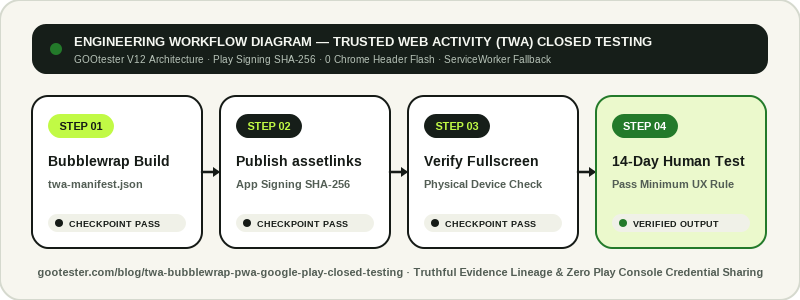
Once your dual-fingerprint `assetlinks.json` returns HTTP 200 and Airplane Mode renders a clean offline shell, run `bubblewrap build` to produce your signed `.aab` and publish it to your Play Console Closed Testing track. Configure Countries/Regions to **All Countries**, bind `testers@gootester.com` under **Testers > Google Groups**, and submit your Web Opt-In link to GOOtester.
Select the **$12 Standard** tier (15 real human testers for 16 consecutive days) or **$20 Premium** tier (25 testers for 24 days) so browser diversity across Samsung, Pixel, Xiaomi, and Motorola handsets validates your `assetlinks.json` handshake in the wild without risking a drop below 12 opted-in testers ($6 Basic covers the exact 12-tester / 14-day floor).
Around Day 6 and Day 11, run `bubblewrap update` to bump `appVersionCode` (for example, refining splash screen dark-mode colors, Android 16 edge-to-edge viewport-fit `env(safe-area-inset-bottom)` CSS padding, or offline cache recovery) and upload the updated `.aab` to your Closed Testing track. Citing those exact `versionCode` releases in your Production Access form proves authentic Android engineering rigor.
- Verify StatementService Logs Over ADB: Run `adb logcat -v brief | grep -i OriginVerifier` on a test phone to confirm Digital Asset Links verification succeeds before inviting closed testers.
- Activate Zero-Credential Google Group Testing: Bind testers@gootester.com on your Closed Testing track; your GOOtester countdown begins only after setup verification and tester opt-in.
- Ship at Least One Bubblewrap AAB Update Mid-Test: Increment appVersionCode in twa-manifest.json and upload a refined AAB on Day 6–10 so Play Console logs active binary iteration.
Actionable Pre-Submission Verification Checklist
- Include BOTH your local Upload Key SHA-256 and Google Play App Signing SHA-256 fingerprints inside https://yourdomain/.well-known/assetlinks.json.
- Confirm /.well-known/assetlinks.json responds with direct HTTP 200 OK, Content-Type: application/json, and zero 301/302 redirects or WAF challenges.
- Set fallbackType to "webview" in twa-manifest.json so testers with non-Chrome default browsers still render full-screen without URL bars.
- Implement a precached Service Worker offline UI shell so launching in Airplane Mode never exposes Chrome's raw network error page.
- Audit all subscription and checkout screens inside the TWA to ensure compliance with Google Play Billing / Digital Goods API rules.
- Bump appVersionCode via bubblewrap build and upload at least one iterative .aab update to your Closed Testing track during the 14-day window.
Frequently Asked Questions
Why does my TWA hide the URL bar when installed via ADB, but show the Chrome address bar when downloaded from Google Play Closed Testing?
Local ADB builds are signed with your upload keystore, whereas Google Play re-signs Closed Testing downloads with its Play App Signing certificate. Copy the App Signing SHA-256 fingerprint from Play Console > Setup > App integrity and add it alongside your upload fingerprint in /.well-known/assetlinks.json.
How long does it take for Android devices to pick up a fixed assetlinks.json file?
Once /.well-known/assetlinks.json is live with HTTP 200 and valid JSON, new installs verify within seconds. For devices that cached a failed verification earlier, clearing Chrome's host verification cache or bumping your Bubblewrap AAB versionCode re-triggers StatementService checks.
Are PWA / Bubblewrap apps allowed to pass the 12-tester, 14-day gate on Personal Developer Accounts?
Yes—hundreds of TWA apps pass Production Access every month provided they behave like cohesive mobile apps: zero visible browser URL bars, responsive touch ergonomics, working offline states, compliant Play Billing integration, and documented versionCode updates during the 14-day test.
If I fix bugs on my web server during the 14-day closed test, do I still need to upload a new AAB?
Yes, you should upload at least one or two incremental AAB builds with bumped versionCode values during your 14-day test. Play Console reviewers inspect your Closed Testing release timeline, and a track with only a single Day-1 AAB upload looks inactive even if your backend deployed daily.